
How to Actually Use Claude (A Guide for Business Owners)
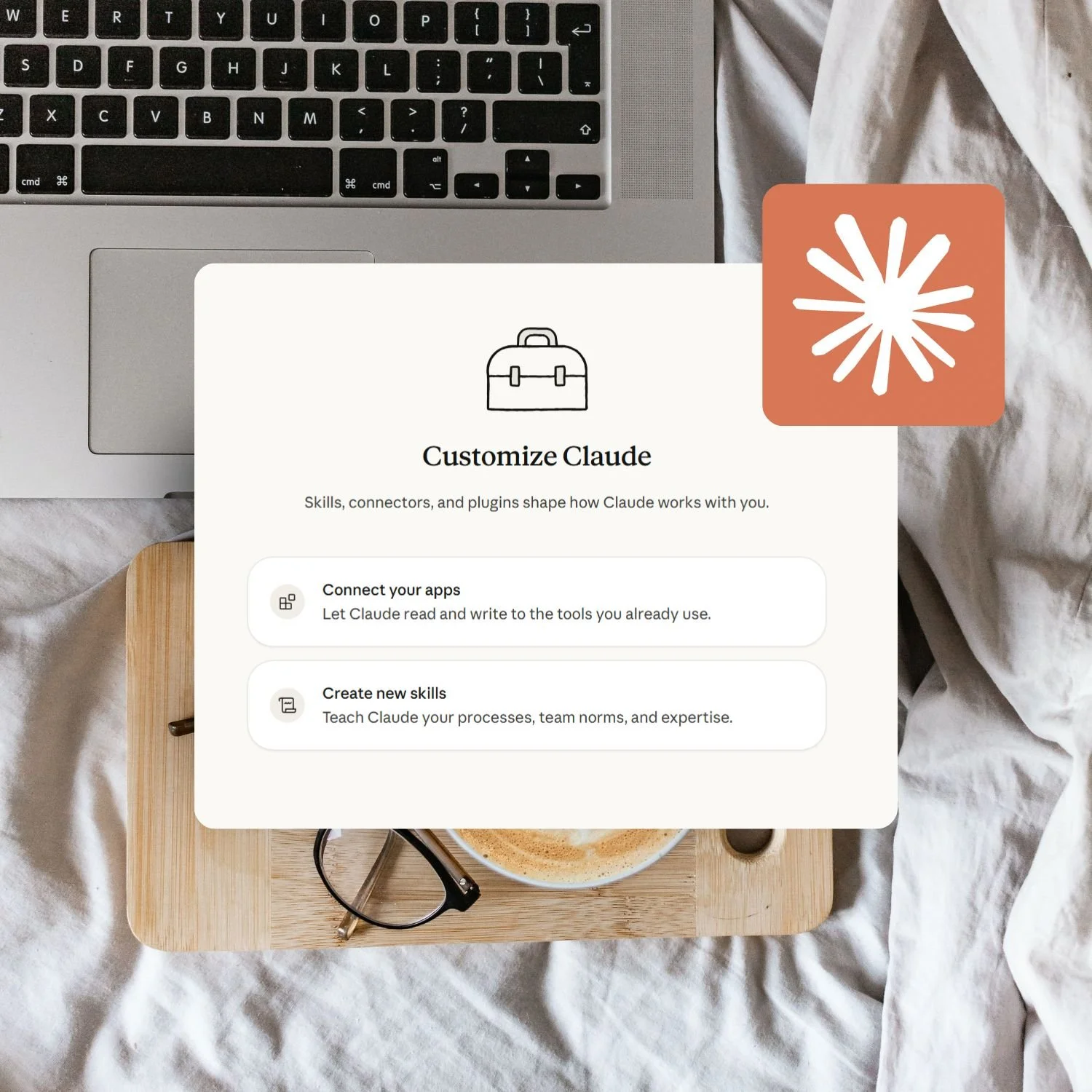
To get the most from Claude as a business owner, set up your account properly (turn on memory, file creation, and past chat search), learn to give Claude more context upfront in a single message, build a Project with your business context loaded in, and add Skills so Claude to compound its knowledge of your brand across everything you do. Use Sonnet for everyday work and save Opus for complex tasks.
If you’ve recently switched to Claude (or you’re thinking about it), this is the guide I wish someone had given me when I started.
I’ve been using Claude alongside ChatGPT for months now. I build products on both platforms. I run my entire blog, my content systems, and a good chunk of my business strategy through Claude. And I can tell you honestly that the first time I used it, I didn’t get it. It felt different from ChatGPT in ways I couldn’t pin down, and I wasn’t sure I liked it.
Turns out that was a setup problem, not a Claude problem. I was treating it like ChatGPT with a different logo, and that’s the fastest way to have a bad experience with it.
Claude thinks differently. It works differently. And it rewards a completely different approach to how you use it.
Once I figured that out, it became one of the most valuable tools in my business because for the work I care most about (writing, strategy, building systems, automation), it genuinely produces better output and has far better capability for the things that matter most to me when it’s set up properly.
According to TechCrunch, Claude hit number one on the App Store in early 2026, with daily signups quadrupling and paid subscriptions more than doubling. People are clearly moving to it. But the “how to actually use this thing for my business” guide? That didn’t exist. So I wrote it.
This guide walks you through setting Claude up properly, step by step, so it’s actually useful for your business by the time you finish reading. Bookmark this one. You’ll come back to it.
The short version:
Claude is not ChatGPT with a different interface. It rewards longer, more detailed prompts upfront and follows complex instructions remarkably well, but only if you actually give them.
There are settings most new users never turn on that fundamentally change how Claude works. Five minutes in your settings makes everything better.
Projects are where Claude goes from chatbot to business tool. They give Claude persistent context about your business across every conversation.
Skills are the compounding layer. They let Claude access your brand knowledge, your processes, and your methodology across all your projects and chats automatically.
You don’t need to choose one platform. The smart approach is using both ChatGPT and Claude for what each does best.
New here? This blog is about AI-powered business design: using systems, structure, and AI to reduce busywork, decision fatigue, and manual effort in real businesses. Start here →
Here’s what we’re covering:
How to Connect Claude to Google Drive, Gmail, and More
Work Within the Limits
Know When to Use Claude vs ChatGPT
Step 1: Set Up Claude Properly
Five minutes in your settings will fundamentally change how Claude works for you.
Go to claude.ai (or download the desktop app, which I’d recommend because it gives you access to Cowork, which we’ll cover in Step 5).
Sign up for a paid plan if you haven’t already. Claude Pro is $20/month USD and gives you access to everything in this guide.
The free tier is fine for testing, but you’ll hit usage limits quickly and miss several features. If you’re planning to use Claude for real business work, Pro is worth it from day one.
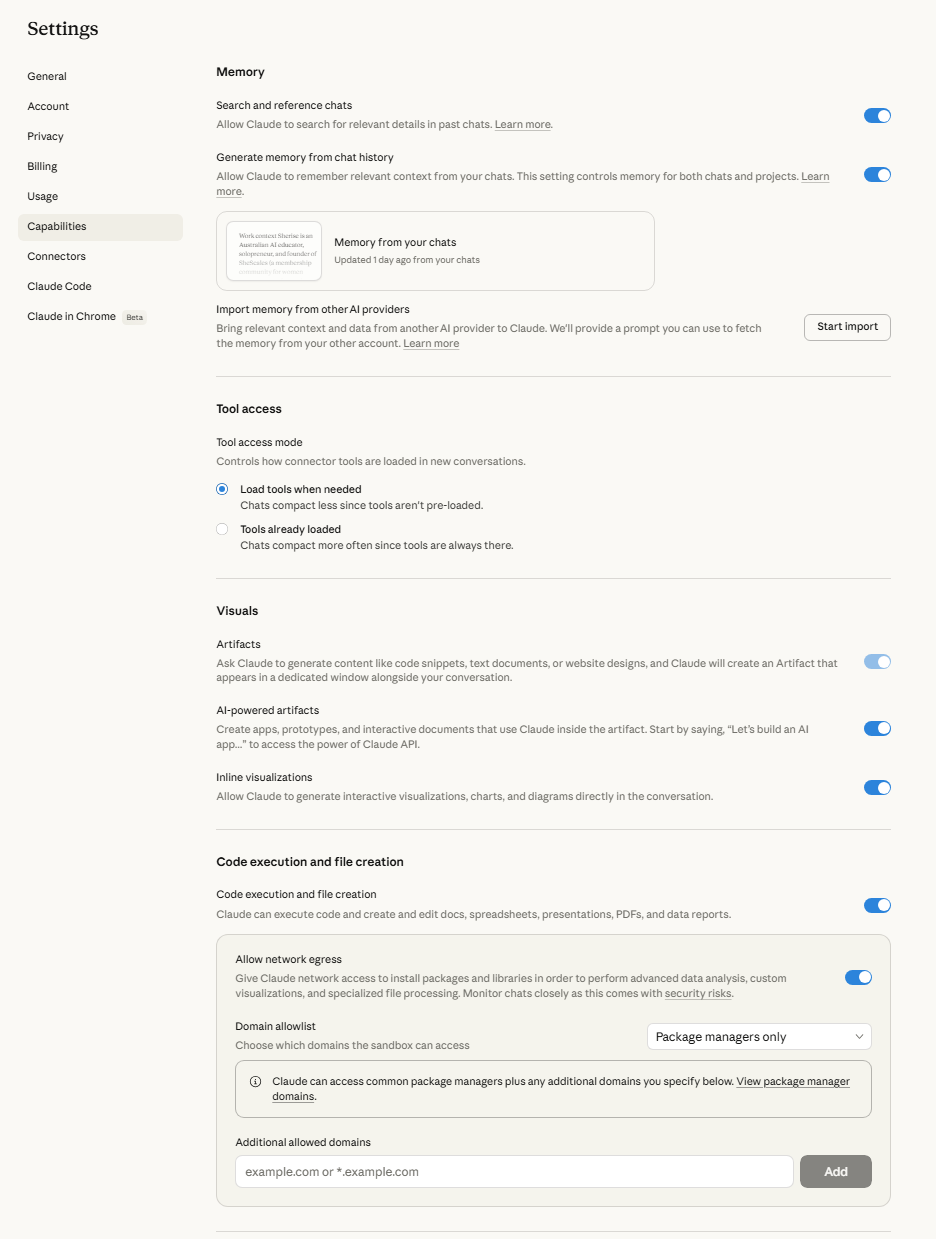
Once you’re in, go to Settings → Capabilities (or Settings → Feature Preview, depending on your app version) and make sure all of these are turned on:
Memory → This is what allows Claude to remember you across conversations. Your name, your business, your preferences, what you’ve discussed before. Without this, every conversation starts from zero. With it, Claude builds a picture of who you are and what you need over time.
Search and reference past chats → This lets you ask Claude things like “what did we discuss about my email sequence last week?” and it will actually find that conversation and pull up the context. This is genuinely useful when you’re working on ongoing projects and can’t remember which conversation had the thing you need.
Artifacts → This creates a side panel where Claude can build documents, code, and interactive tools alongside your conversation. When Claude writes something substantial (a blog outline, a sales page draft, a comparison table), it appears in this panel so you can see it clearly and download it.
Code execution and file creation → This is the one most people miss. With this on, Claude can create actual Word documents, spreadsheets, presentations, and PDFs that you can download. Not just text in a chat window. Real files. If you need a formatted report, a slide deck, or an Excel file, Claude can build it.
Inline visualisations → Charts, diagrams, and visual explanations directly inside your conversation. Useful when you’re working through data or want Claude to map out a process visually.
Turn all five on. And while you’re in settings, go to Profile and add your name and any key context about yourself and your business that you want Claude to know by default. This is separate from memory (which builds over time) and acts as a starting foundation.
By the end of this step: Your Claude account is properly configured with all the features you need turned on. Everything from here builds on this foundation.
Step 2: Learn How Claude Thinks
The single biggest mistake new Claude users make is prompting it the same way they prompt ChatGPT. Claude rewards a completely different approach.
With ChatGPT, most people have learned to go back and forth. You give a short instruction, get a response, refine it, ask again, adjust, repeat. That works fine on ChatGPT because it’s designed for that conversational style.
Claude is different. It’s built to follow detailed, complex instructions in a single prompt. The more context you give it upfront, the better the output on the first try. Instead of five rounds of back-and-forth, you give Claude one thorough brief and get something much closer to what you want immediately.
Three things to know about how Claude communicates:
Claude is more honest than ChatGPT. If your idea has gaps, Claude will tell you. If your strategy has a weakness, it’ll flag it. This can feel jarring if you’re used to ChatGPT agreeing with everything you say. But it’s genuinely more useful once you adjust. You want an AI that pushes back on your thinking, not one that tells you everything is brilliant.
Tell Claude what NOT to do. Claude is excellent at following restrictions. Give it a “never say” list (words and phrases you don’t want in your content), formatting rules (no bullet points, no em dashes, short paragraphs only), and boundaries around tone. Claude respects these consistently in a way that makes a real difference to output quality.
Claude handles long, complex inputs well. You can paste in entire documents, long briefs, or detailed context and Claude won’t lose the thread. Its context window is large, which means you can give it your Brand Blueprint, a full brief, and reference material all in one conversation and it will use all of it coherently. Don’t be afraid to give Claude too much. More context almost always means better output.
By the end of this step: You know how to talk to Claude in a way that gets better results from the first message. You’ll spend less time going back and forth and more time working with strong first drafts.
Step 3: Build Your First Project
This is the step that turns Claude from a chatbot into a business tool. Projects give Claude persistent context about your business that carries across every conversation inside the project.
Without a Project, every new Claude conversation starts from scratch. Claude doesn’t know your business, your voice, your audience, or your offers. You’re briefing it from zero every single time.
With a Project, you load all of that context once. Every conversation inside the project inherits it. Claude already knows who you are, what you do, who you serve, and how you communicate. The output quality changes immediately because the foundation is already there.
Think of it as the Claude equivalent of a Custom GPT on ChatGPT, but more flexible because you can have multiple conversations inside one project, and the context persists across all of them.
Here’s how to set up your first project:
1.Go to Projects (in the left sidebar on claude.ai or the desktop app) → Create Project.
2.Name it. Something clear and functional e.g. “Content Creation”, “Customer Service”, “Offer X”.
3.Write your custom instructions. This is the most important part. Custom instructions tell Claude how to behave inside this project. They should cover:
Role - What Claude does in this project
Context - Any context the project needs to do its job well
Rules - Your non-negotiables
Process - How Claude should approach tasks
Output Format - How you want the output structured and formatted
Project Knowledge - What’s in the project knowledge files, and how and when to use that knowledge (e.g. caption examples, links, formats)
If you’re not sure how to write these from scratch, paste this prompt into a new Claude conversation and let it interview you:
“You are a Claude Project setup assistant. Your job is to interview me, then generate custom instructions for a new Claude Project.
RULES:
- Ask ONE question at a time. Wait for my answer before moving on.
- Do NOT generate instructions until the interview is complete.
- If my answers are vague, push back and ask me to be more specific.
- Use plain language, no jargon.
INTERVIEW FLOW:
1. What specific task or workflow is this Project for?
2. Who is the audience for the output?
3. What role should Claude play? (e.g. ghostwriter, strategist, editor, idea generator)
4. What tone and format preferences matter?
5. What should Claude ALWAYS do in this Project?
6. What should Claude NEVER do?
7. How should Claude approach work? (ask questions first? draft options? go straight to output?)
8. Can you describe or share an example of good output for this Project?
Skip any questions that have already been answered. When done, generate instructions using this structure:
Role — What Claude does in this Project (one sentence)
Context — Who the audience is and what matters to them
Rules — Always/never rules (max 8–10, most important first)
Process — How Claude should approach tasks step by step
Output Format — Formatting preferences, length, structure
End by suggesting what documents to upload to the Project knowledge base.”
Claude will walk you through it. By the end, you’ll have custom instructions ready to paste into your project.
4.Upload knowledge files. This is where you add documents that Claude should reference inside this project. Your Brand Blueprint, any writing samples that represent your style etc. These files sit in the project’s knowledge base and Claude draws on them whenever they’re relevant.
You don’t need to upload everything at once. Start with whatever you have. A Brand Blueprint alone makes a significant difference. If you don’t have one yet, this post walks you through building one [link to A1].
5.Start a conversation inside the project. Open the project, start a new chat, and ask Claude something you’d normally ask. You’ll notice the difference immediately. The output is more specific, more on-brand, and more aligned with your business because Claude has context it didn’t have before.
By the end of this step: You have your first Claude Project set up with custom instructions and knowledge files. Every conversation inside it benefits from your business context automatically.
Step 4: What Are Claude Skills (and Why They Matter)
If Projects are Claude knowing your business inside one workspace, Skills are Claude knowing your business everywhere.
A Skill is a set of instructions and reference files that Claude can access across all your projects and conversations. You create it once, and it’s available whenever Claude needs it. Think of it as giving Claude a permanent area of expertise that follows it wherever it goes.
This is the feature that makes Claude compound over time rather than resetting with every new project.
To see what I mean, let me show you one of mine. I have a blog writer skill that I use for every blog post I write (including this one). It’s not just a document with some notes. It’s a structured system with five files:
The main instruction file tells Claude exactly how to approach writing a blog post for my business. It covers the workflow (topic confirmation → competitive research → title generation → outline → full draft → SEO metadata), my blog-specific voice calibrations, my formatting rules, and a quality checklist to run before delivering.
The reference files each handle a specific area:
Blog ideation covers how to brainstorm topic clusters and evaluate whether a topic is worth writing about
Blog structure is the strict format spec for how every post is built (opening section, table of contents, body sections, FAQs, schema)
Blog playbook covers title methodology, emotional architecture, SEO and AI search optimisation, and sentence-level writing craft
Internal links tracker lists my published posts so Claude can weave in relevant links as it writes
When I ask Claude to help me write a blog post, it loads the skill automatically, reads the relevant reference files, and follows the full process without me re-explaining any of it. The output is dramatically better than if I just asked Claude to “write me a blog post” in a blank conversation, because the skill carries my methodology, my voice rules, my structure, and my strategic approach.
How to create your first skill:
Go to Settings → Capabilities → Skills and make sure the skill creator is enabled. Then start a new conversation and tell Claude what you want the skill to do. For example:
“I want to create a skill for writing Instagram captions for my business. It should include my brand voice rules, my audience profile, my formatting preferences, and examples of captions I love. Walk me through building it.”
Claude will guide you through the process and generate the skill files you need.
What to create first: If you’ve built a Brand Blueprint, turning that into a skill is the highest-impact starting point. Once your brand context exists as a skill, every project and every conversation benefits from it automatically. You stop re-explaining your business and start getting on-brand output by default. If you don’t yet have a Brand Blueprint, click here to create one.
By the end of this step: You understand what Skills are, why they matter, and you know how to create your first one. Your Claude setup is now compounding, not just functional.
Step 5: How to Connect Claude to Google Drive, Gmail, and More
Claude can connect to tools you already use, which means you spend less time uploading and re-explaining and more time actually working.
Connectors
Go to Settings → Connected Apps (or look for the connectors icon in a conversation) and you’ll see the integrations available. The ones most useful for business owners:
Google Drive: Connect this and Claude can access your existing documents without you re-uploading them. This means you can say things like “pull up my Brand Blueprint from Drive and use it to write this caption” or “find the sales page copy I wrote last month and help me improve the headline.” Your documents stay where they are. Claude just reads them when you ask.
Gmail: Claude can reference your emails. Useful for things like “draft a reply to this client email” or “summarise the last 5 emails from my VA about the launch timeline.”
Google Calendar: Claude can check your schedule and help with planning. “What does my week look like?” or “find a 2-hour block I could use for content creation this week.”
Notion: If you run your business docs in Notion, Claude can access them directly.
To connect any of these: click the connector in your conversation or go to Settings → Connected Apps, authorise the service, and you’re done. It takes about 30 seconds per tool.
There are a myriad of tools you can connect. Browse through and connect the ones your business uses.
Cowork
Cowork is a separate tab inside the Claude desktop app (you’ll need to download the app to access it). It’s different from regular Claude in one important way: instead of chatting with you, it works for you.
In regular Claude, you have a conversation. In Cowork, you give Claude a task and it goes and does it. It can read and write files directly on your computer, create documents, process information, and complete multi-step tasks without you managing every piece.
For a service-based business owner, here are the kinds of things Cowork handles well:
“Create a Word document with my content plan for next month based on the topics in this folder”
“Take this blog post and create a formatted PDF guide I can use as a lead magnet”
“Go through these client feedback screenshots and pull out the key testimonials into a spreadsheet”
You describe what you want done, point it at the relevant files or folders, and Cowork handles the execution.
It’s not a chatbot. It’s closer to a virtual assistant who can actually touch your files.
File Creation
This one deserves its own mention because most people genuinely don’t know Claude can do it. With file creation turned on (from Step 1), Claude can produce actual downloadable files:
Word documents with proper formatting, headings, and structure
Spreadsheets with formulas and data
Presentations with slides and content
PDFs with professional formatting
If you’ve been copying text out of Claude and pasting it into other tools to format it, you can skip that step entirely. Ask Claude to create the file directly and download it ready to use.
By the end of this step: Your tools are connected, you know what Cowork can do, and you know Claude can create real files. You’ve gone from “chatbot” to “integrated business tool.”
Step 6: Work Within the Limits
Usage limits are the number one frustration for new Claude users. Here’s how they actually work and how to stop hitting walls.
Claude Pro doesn’t give you unlimited usage. You get a set amount of messages that refreshes over a rolling window (roughly every 5 hours, though Anthropic adjusts this). When you hit the limit, you either wait for it to refresh or switch to a lighter model.
This catches people off guard because ChatGPT Plus feels more unlimited in comparison. But the limits are manageable once you understand how to work with them.
Use Sonnet for everyday work. Sonnet is Claude’s faster, lighter model. It’s genuinely good for most business tasks: drafting content, brainstorming, editing, answering questions, creating documents. It uses less of your allowance per message, which means you can do more before hitting the limit.
Save Opus for the heavy thinking. Opus is Claude’s most capable model. Use it when you need deep reasoning, complex analysis, long-form strategy work, or when you’re working through something that requires real nuance. I use Sonnet for drafting captions and emails, and switch to Opus when I’m working through offer positioning or writing a detailed sales page.
Give more context upfront. Detailed prompts that produce strong first drafts use far less of your allowance than ten rounds of “make it more casual” and “no, not like that.” The fewer messages you need to go back and forth, the further your limit stretches.
Use Projects to front-load your business context. When Claude already knows your business, your voice, and your offers through a Project’s custom instructions, you don’t waste messages re-explaining who you are and what you need. That alone significantly reduces how many messages each task requires.
By the end of this step: You know how limits work, how to stretch your usage, and which model to use for which tasks. No more unexpected walls.
Step 7: Know When to Use Claude vs ChatGPT
You don’t have to choose one platform. The smart approach is using both for what each does best.
I’ve written a full comparison of how I use ChatGPT and Claude in my business [link to C1], so I won’t go deep here. But the short version:
Claude is stronger for: Long-form writing. Following complex, detailed instructions. Strategic thinking and analysis. Honest feedback (it pushes back when something doesn’t hold up). Working inside persistent Projects where context matters. Creating documents and files. And, honestly, the quality of its writing just feels less robotic.
ChatGPT is stronger for: Image generation.Quick casual brainstorming where you don’t need deep output. The Custom GPT ecosystem (if you’ve already built GPTs or use other people’s GPTs). Voice mode for hands-free conversation.
My approach: I build products on both platforms. My Custom GPTs live on ChatGPT. My Projects and Skills live on Claude. My content creation, strategy work, and business writing happen primarily in Claude because the output quality is consistently better for that kind of work. Quick brainstorming and image generation happen in ChatGPT.
Both platforms have strengths. The goal isn’t loyalty to one tool. It’s knowing which tool to reach for and when.
If you want to experience what a properly set up Claude Project feels like, try Sloane, my free storytelling content idea assistant. She’s available as both a Custom GPT and a Claude Project, so you can compare the experience yourself.
By the end of this step: You know which platform to use for which tasks and you’re not wasting time trying to force one tool to do everything.
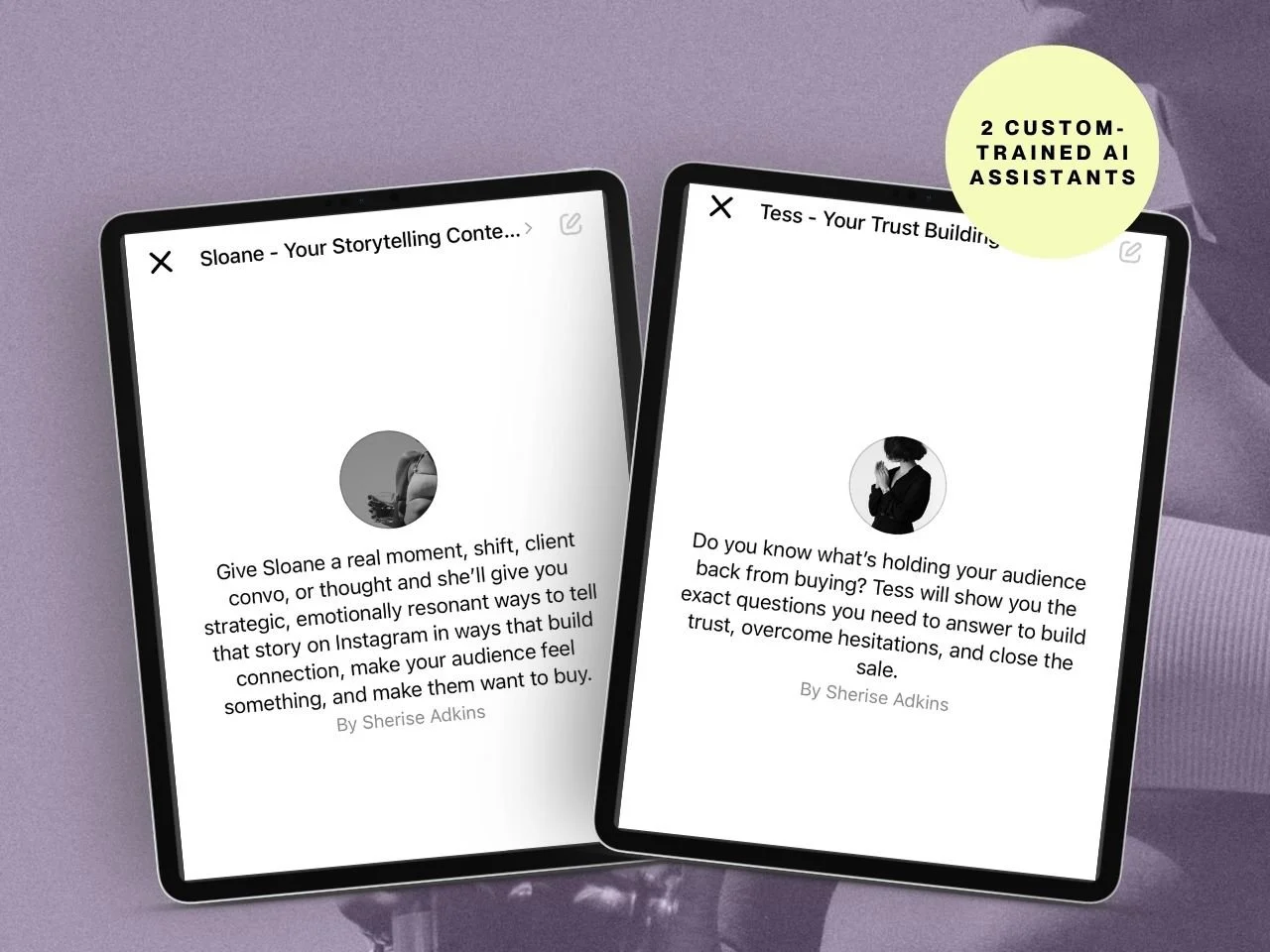
If you want to see how AI assistants actually work in practice, start with the two free ones I’ve created. They’ll help you turn a rough idea into clear, structured content in minutes, while showing you how assistants can carry execution inside your business.
FAQ
Is Claude better than ChatGPT for writing?
For long-form, nuanced content, yes. Claude’s output sounds more natural, requires less editing, and holds a consistent tone across longer pieces. ChatGPT is faster for quick drafts and brainstorming, but the writing quality gap has widened in 2026 after OpenAI acknowledged issues with their latest model’s prose. If writing quality is your primary concern, Claude is the stronger tool right now.
Should I cancel ChatGPT and switch to Claude?
That depends on your needs and your values. If you’re leaving ChatGPT for ethical reasons, Claude is a genuinely capable alternative that can handle most business content tasks on its own. If you’re choosing based on features, most serious AI users in 2026 use both and route different tasks to different tools. If you’re only paying for one subscription and your main need is content creation, Claude is the better writer.
What are Claude Skills?
Skills are persistent instruction sets that Claude applies across everything you do. You set up the skill and Claude is able to carry its knowledge into every conversation and Project from that point forward. Think of them as your brand’s operating system inside Claude. They’re the feature I wish more people knew about.
Can I use Claude for free?
Yes, with limited messages on a rolling window. Free users now have access to Projects and Artifacts, which is a significant upgrade from earlier in the year. The free tier is enough to test whether Claude suits your workflow, but if you’re using it for real business work, the Pro plan ($20/month) removes most of the friction around usage limits.
What’s the difference between a Custom GPT and a Claude Project?
Custom GPTs are shareable products. You configure instructions, upload files, and share them with a link. Your client clicks once, and they’re using it. Claude Projects are personal workspaces with deep context. You upload reference documents, set instructions, and Claude holds everything about that area of your business in memory. Different tools for different jobs: GPTs for distribution, Projects for depth.
Can AI actually write content that sounds like me?
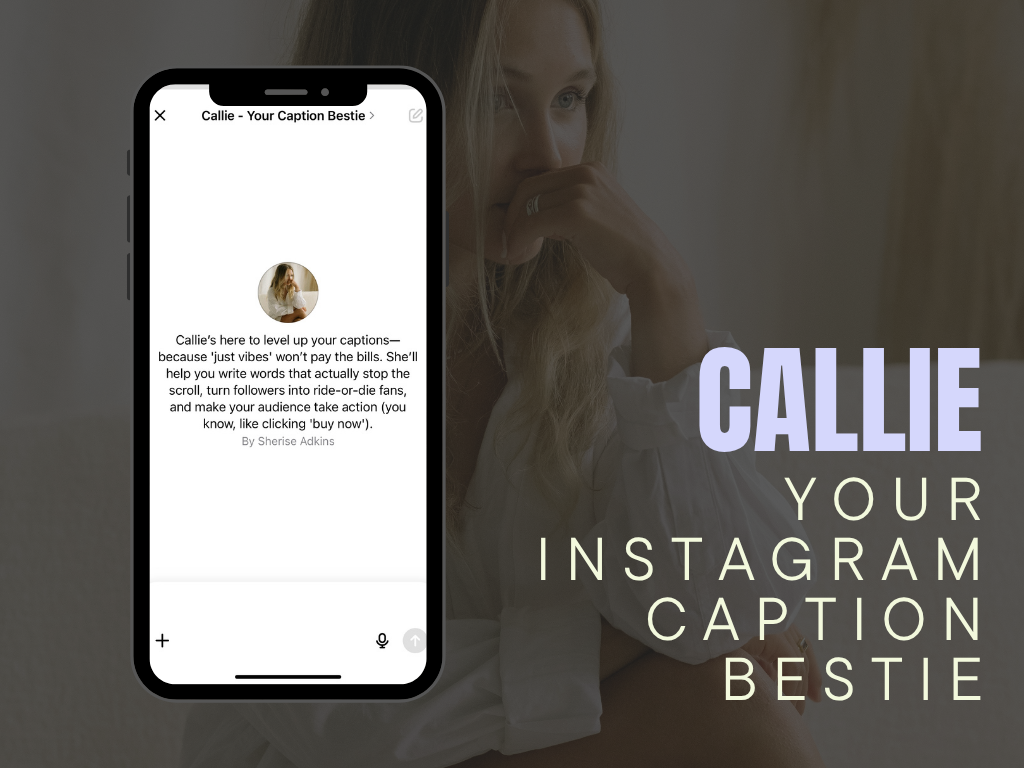
Yes, but only if you train it properly. The reason most AI content sounds generic is because most people give AI zero context about their voice, their audience, or their offers, then wonder why it sounds like a robot. When you feed AI your voice rules, examples of your best writing, your audience profile, and clear instructions about what to do (and what to never do), the output shifts dramatically. This is exactly how I build my custom GPTs and Claude Projects. Callie, my Instagram caption tool, writes captions that my clients regularly describe as “sounding like me on my best day.” That’s not magic. It’s training. And it’s the same principle whether you’re on ChatGPT or Claude.
What to Do Next
Start with a free taste of what trained AI actually feels like.
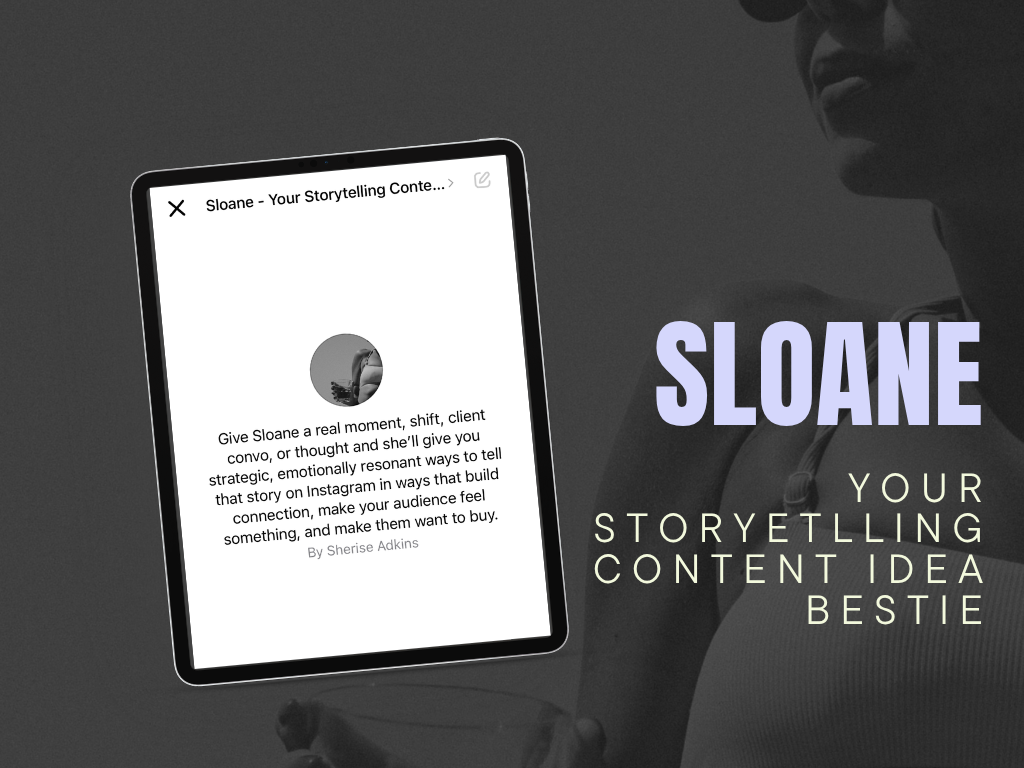
Sloane is my free storytelling content tool. She’s available as both a custom GPT and a Claude Project, and she turns any real-life moment, a win, a lesson, a conversation, a frustrating Tuesday, into storytelling ideas that land. If you’ve only ever used a blank ChatGPT or Claude window, Sloane will show you the difference that purpose-built AI makes. She’s free, she’s instant, and she’s a good litmus test for whether this approach to AI is for you.
If Sloane makes you think “I want this for the rest of my content,” here’s where to go next:
For Instagram content specifically, Callie is my custom GPT that writes captions in your brand voice.
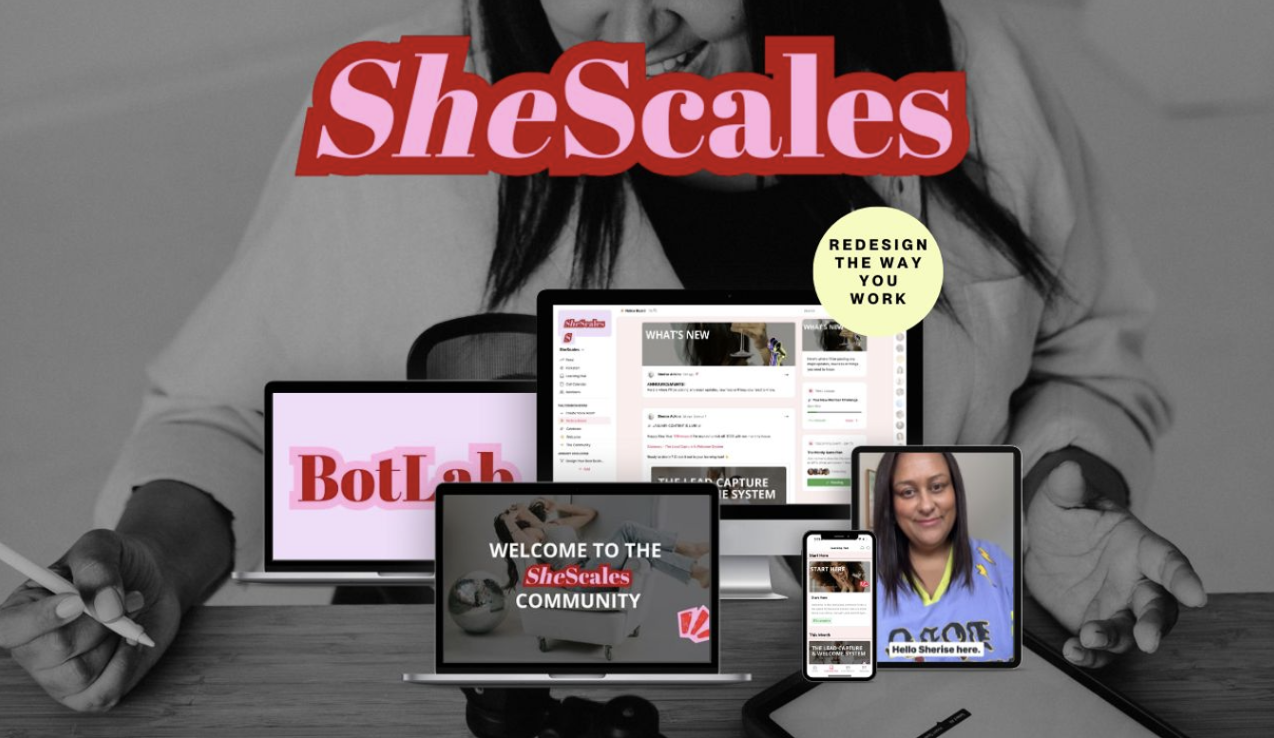
For the full AI-powered business setup, SheScales is my community where members get a new AI toolkit every month, built for both ChatGPT and Claude, with live coaching to implement. It’s for business owners who want AI doing 80% of the execution so they can focus on the 20% that actually requires their brain.
If you want to stop tinkering and start building your AI layer with structure and support behind you, that’s where we do it.
The AI landscape will keep moving. Platforms will update, pricing will shift, new features will drop, and new controversies will reshape how people feel about the companies behind these tools. The businesses that stay ahead are the ones who build their AI layer to be portable, intentional, and always in service of the work that matters.
Your tools should work for you. Not the other way around.
MEET THE AUTHOR

HEY, I'M SHERISE
I'm an AI educator and automation strategist helping women entrepreneurs remove the low-value work from their business so they can spend more time in strategy, creativity, and the work that actually moves the needle.
I build AI-powered tools that sound like you, work for you, and integrate into how your business actually runs — not how a generic productivity guru thinks it should.
If you found this post, you're probably already thinking about what's possible. Let's build it properly.