
Claude Connectors: How to Connect Claude to the Tools You Already Use
Last updated June 2026
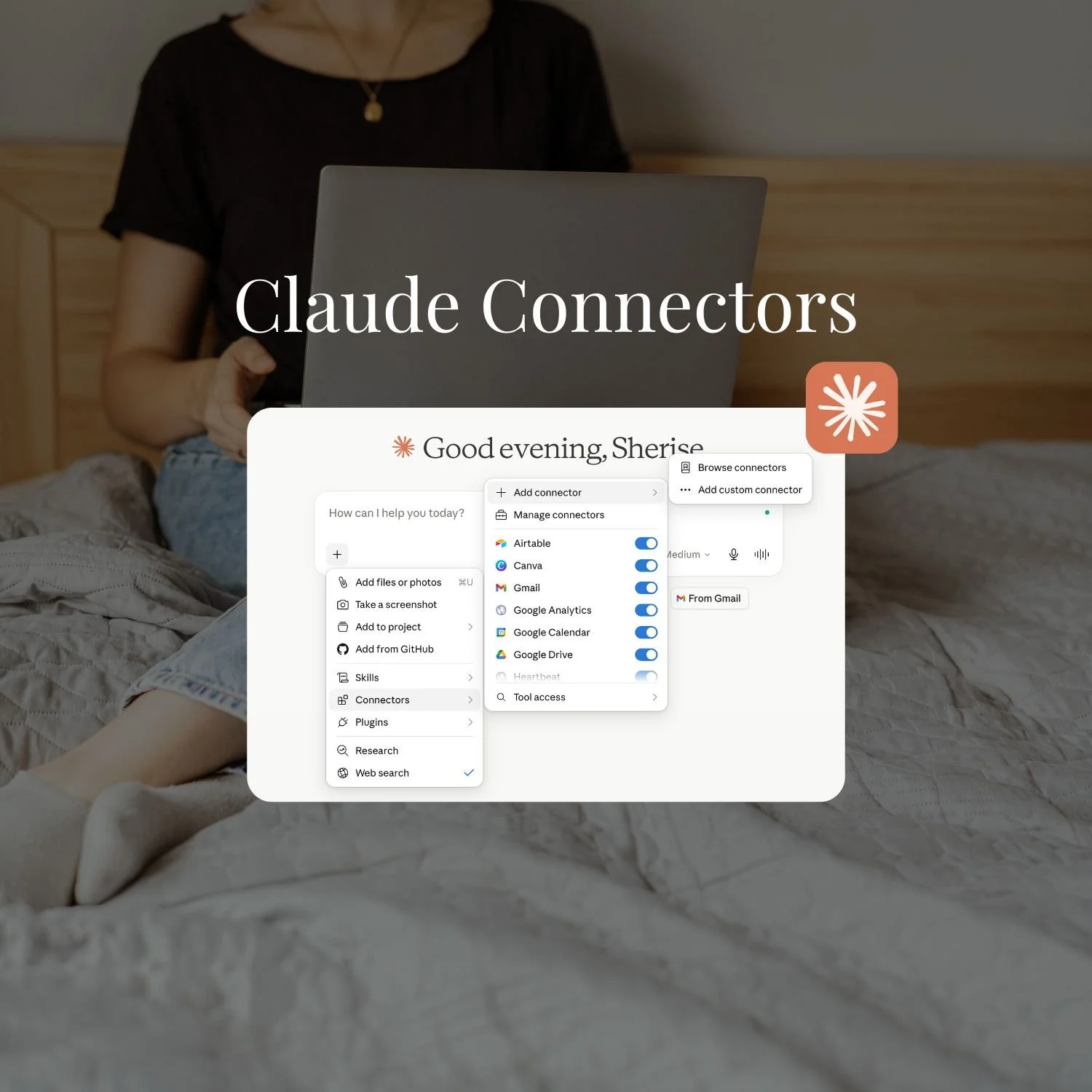
Back before connectors were a thing, I was using Claude to help me write client emails. I had the context in my head, typed it all out, Claude drafted the reply, I copied it over to Gmail. Done.
And then the Gmail connector became available in Claude and it was love at first sight.
Now I have a Scheduled Task in Claude Cowork that has drafts waiting for me to hit send on when I open my laptop in the morning. I go in, review, adjust one or two lines, and it's sent.
That's the difference between using Claude as a clever writing tool and using Claude as something that actually runs a function in your business. Connectors are what bridge the two.
Claude Connectors are integrations that give Claude access to the apps you already use, like Gmail, Google Drive, Notion, Canva, and hundreds of others. Once connected, Claude can search your files, read your emails, pull context from your tools, and in many cases take action inside them, all from one conversation without switching tabs or copy-pasting a thing.
TL;DR:
Connectors give Claude a live, secure link to the apps your work already lives in, so it can search, read, and act inside them instead of waiting for you to copy-paste context in.
There are hundreds in the directory, all built on MCP. Setup is a standard login and takes under 60 seconds per connector.
The six that matter most for a solo founder: Gmail, Google Drive, Google Calendar, Notion, Canva, and Slack. The Google trio and Canva are free on all plans.
The real shift comes from combining them, so one prompt can pull an email, grab a Drive file, and build a Canva design without you switching tabs.
Don't turn everything on. Each active connector eats context before you've typed a word, so toggle on only what the task needs.
New here? This blog is for the solo founder who wears every hat in the business, and wants real AI systems and workflows running things, not just piecing it together in the chat. Start here →
What Are Claude Connectors, and Why Do They Change How You Work?
Connectors give Claude a secure, live connection to the tools where your actual work lives, and permission to act inside them on your behalf.
As of June 2026, there are 375+ connectors in the directory, spanning productivity, communication, design, project management, and more. They're built on the Model Context Protocol (MCP) — an open standard Anthropic developed so Claude can plug into external tools in a consistent, secure way.
Think of it like USB for AI: one universal connection point for your software.
These aren't read-only lookups. Claude can take action inside connected tools — draft an email in Gmail, create a folder in Drive, add a page to Notion, generate a design in Canva. Not every connector can write, but the point is that Claude goes from advisor to operator.
How Do You Set Up a Claude Connector?
Setup is genuinely fast. Under 60 seconds for most connectors.
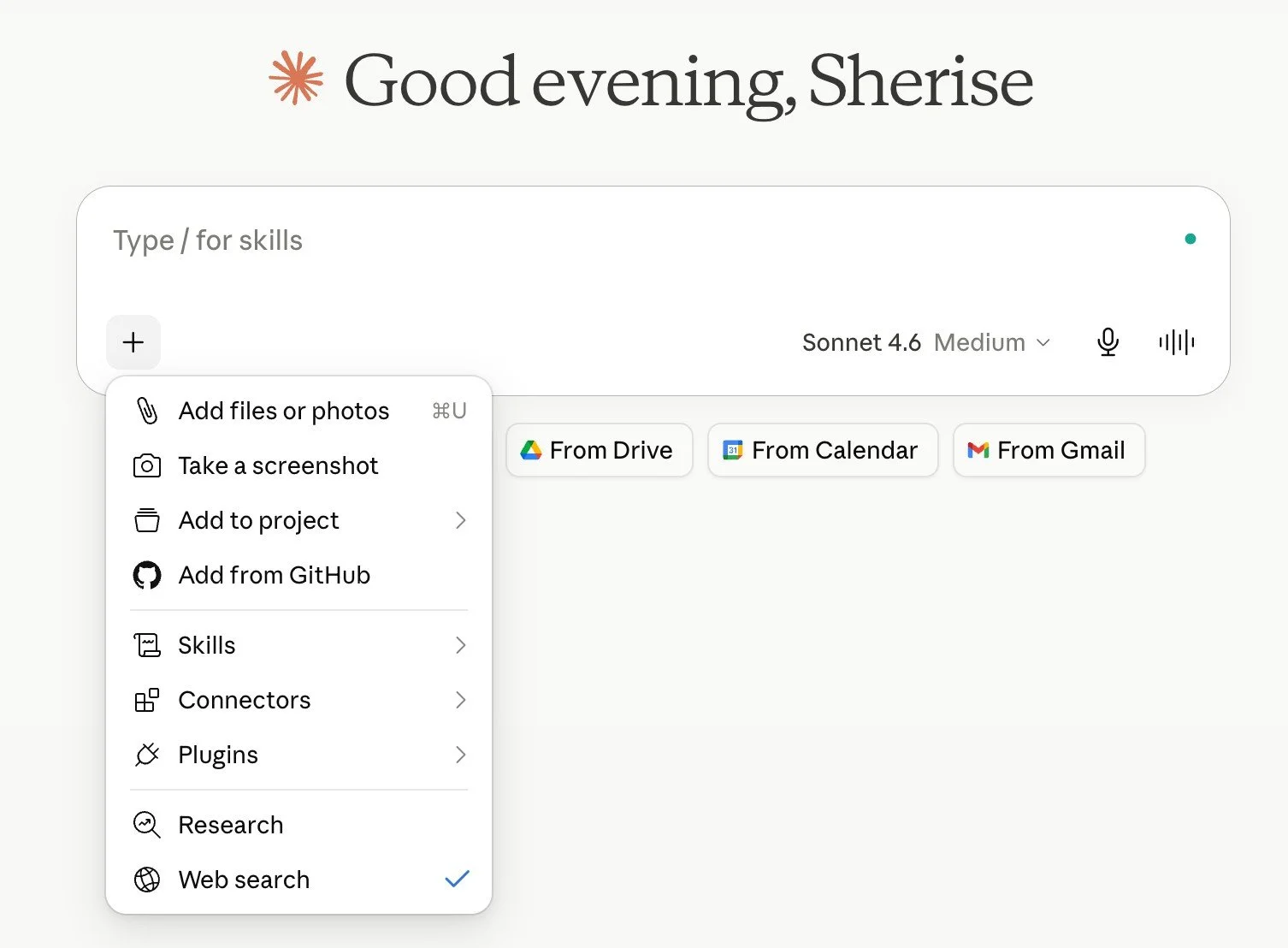
Step 1: Open a chat and click the "+" icon in the chat bar
You'll see a Connectors option in the menu.
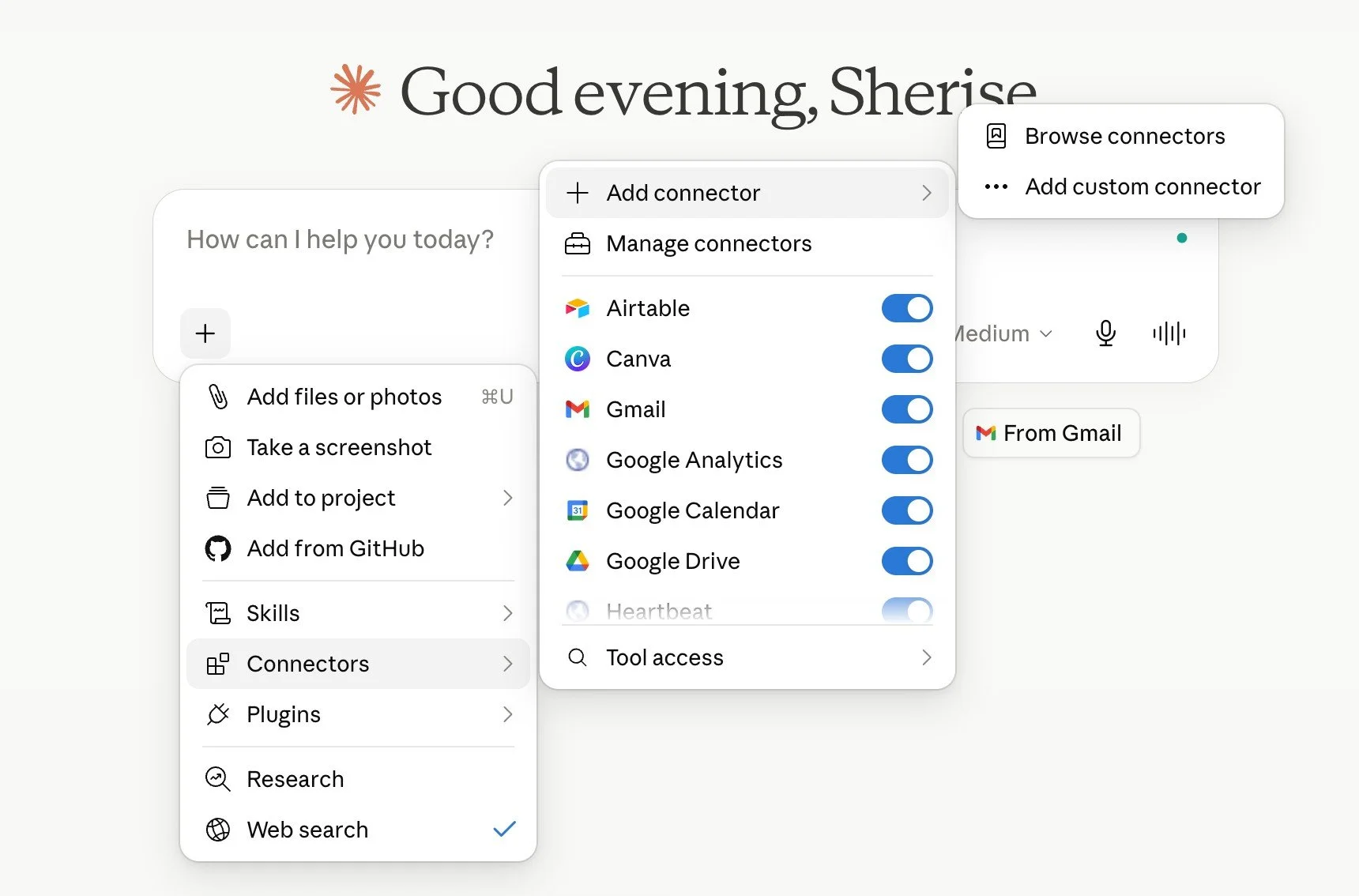
Step 2: Select "Add connector" and browse or search the directory
You can search by tool name (Gmail, Notion, Canva) or browse by category. The full directory is at claude.ai/directory/connectors if you want to look before committing.
Step 3: Click Connect and authorise access
Most connectors use a standard OAuth flow — you sign in with your existing account credentials and approve what Claude can access. No passwords shared with Anthropic. One authorisation and you're done.
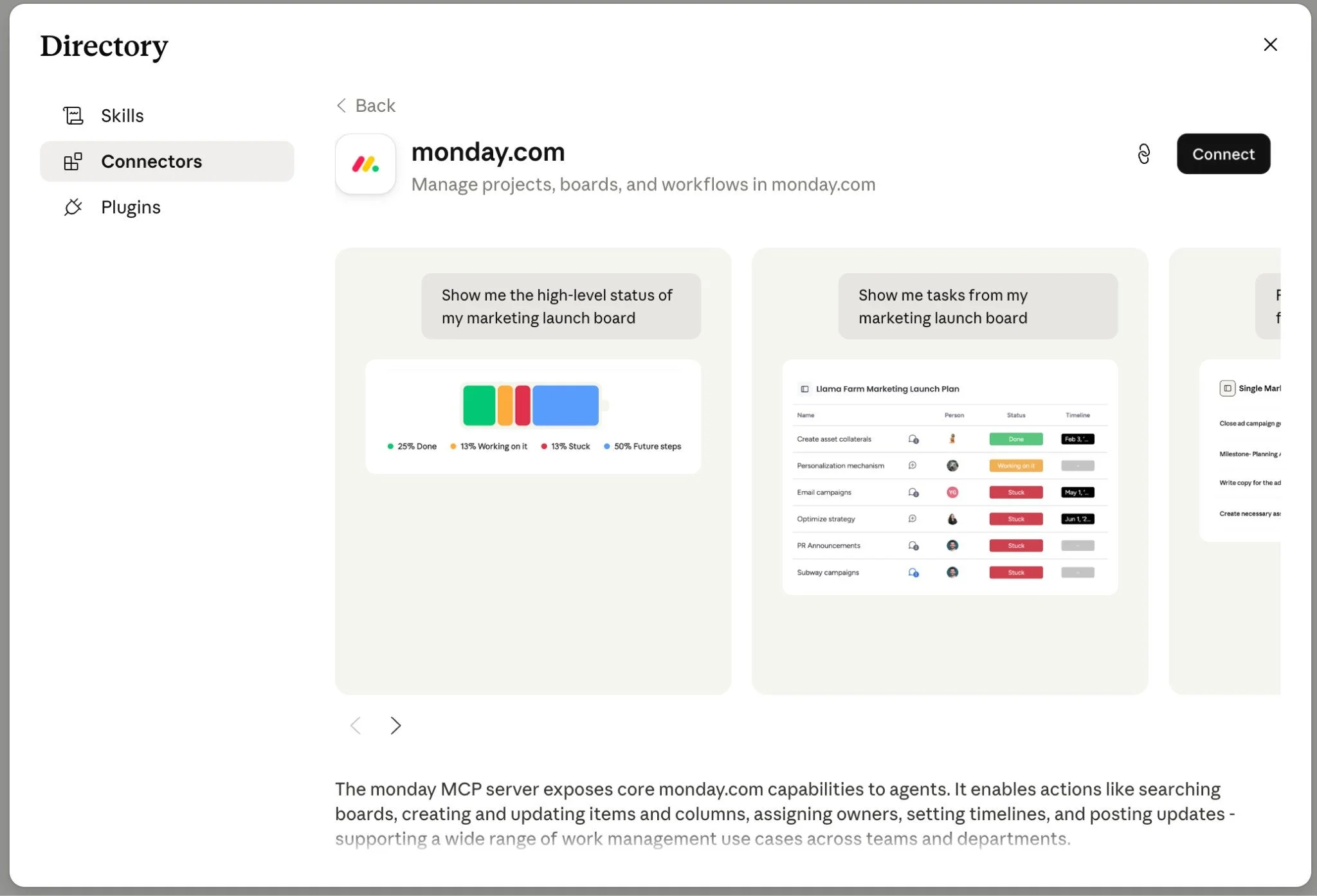
You only need to authorise each connector once. After that, it's in your list and available to toggle on in any conversation.

Want the full Claude setup laid out step by step?
This free kit covers every setting worth turning on, how Projects and Skills work, and the exact prompt to export your ChatGPT memory so you're not starting from scratch.
It's the guide I wish I had when I started.
Which Connectors Should Solo Founders Actually Use?
These are the six that make a real difference for the person running a solo business — with real examples of what each one actually unlocks.
1. Gmail - What Does Connecting Claude to Your Email Actually Do?
The highest-impact connector for most solo founders, full stop.
Without it: you copy and paste email threads into Claude, write your context, get a draft, copy it back to Gmail. Without the connector, Claude is writing in a vacuum.
With it: Claude reads your actual inbox. It knows who said what, when, and what's still sitting unanswered. It can draft replies for you that both sound like you and are accurate because it can see the context.
In practice, that looks like coming back from a week away, and instead of manually triaging 80 emails, you ask Claude to scan your inbox, flag anything that needs a reply, and draft responses for them. You spend 20 minutes reviewing and sending instead of 90 minutes digging through threads.
What Claude can do: search and read emails, draft replies in your voice, summarise threads, organise with labels, surface unanswered messages.
What it can't do: send emails on your behalf. Claude creates drafts. You review and send. That's by design, and the right call.
Prompts to try:
"Find the last email thread with [name] and summarise what we discussed."

"Draft a follow-up to the email from [name] last week. Friendly but professional, my usual tone."

"What's sitting in my inbox that I haven't replied to in over 3 days?"
2. Google Drive - Can Claude Actually Search and Read My Documents?
Yes, and it changes the way you use your own files.
Without the connector: you find the document, download it or open it, copy the relevant bits into Claude, ask your question. Repeat every time.
With it: you just ask. Claude searches your Drive, finds the file, reads it, and answers in one go.
In practice that looks like aclient asking about something from their onboarding document, and instead of opening Drive, finding the file, scanning for the relevant section, and then typing a reply, you ask Claude to pull the document and draft a response based on what's actually in it. Done in the time it used to take just to find the file.
What Claude can do: search and read Docs, Sheets, Slides, PDFs, and images; upload files; create folders; pull Drive documents directly into a Project as living, always-current knowledge.
What it can’t do: edit your files
Prompts to try:
"Find my client proposal template in Drive and use it as a starting point for a new proposal for [name]."

"I have a spreadsheet called 'Revenue Q1 2026' in my Drive. Pull it up and tell me which month performed best."

"Search my Drive for anything related to [topic] and summarise what I've already got."
3. Google Calendar - Will Claude Actually Book Things for Me?
Yes, and this one feels small until you use it.
Without the connector: Claude can suggest meeting times but can't see your actual availability. You check your calendar separately, go back to Claude, describe your gaps, get a draft invitation, then create the event yourself.
With it: Claude sees your real calendar and handles the logic.
In practice that looks like instead of you checking your calendar, noting available slots, drafting a reply, then creating the event, you tell Claude to find a 45-minute window next week and draft the invitation. One prompt. Claude checks your actual calendar, finds the gap, and writes the email. You paste it and go.
What Claude can do: view existing events, create and update events, find mutual availability across attendees, set up recurring meetings, manage attendee lists.
Prompts to try:
"What does my week look like? Where do I have breathing room for deep work?"

"Find a 45-minute slot next week for a call with [name] and draft an invitation."

"Block 2 hours every Tuesday morning for content work for the next 4 weeks."
4. Notion - Can Claude Search My Notion Workspace?
Yes. And if Notion is where you run your business brain — client notes, content plans, SOPs, project tracking — this is the connector that stops you from manually digging through your own system.
Without the connector: Claude knows nothing about what's in your workspace. You copy your content pillars in, paste your SOPs, summarise your project notes. Every time.
With it: Claude can search your workspace and pull what it needs directly.
In practice that looks like you asking Claude to find a particular document in Notion, or asking it to add all of your Instagram content for the month directly into Notion for you.
What Claude can do: read pages and databases, search across your workspace, and create and update content.
Prompts to try:
"Search my Notion for my content pillars and use them to brainstorm 5 post ideas for this week."

"Find my SOP for client onboarding and summarise the key steps."

"What's in my Notion project page for [client name]? What's the current status?"
5. Canva - Can Claude Actually Design Things Inside Canva?
Yes. And Claude doesn't just read data in Canva; it generates and edits designs directly inside your Canva account.
Without the connector: you ask Claude for copy or ideas, switch to Canva, build the design, come back to Claude to adjust the text, go back to Canva to update it. The thinking and the making are in different places.
With it: you go from concept to a finished Canva asset inside one conversation.
In practice this looks like You are telling Claude which Canva template to use, and Claude is populating the carousel in Canva with your writing. Claude generates the carousel directly in Canva. You open it, make any small tweaks you want, and it's ready to schedule. What used to be a 30-minute back-and-forth between Claude and Canva takes about 5 minutes.
What Claude can do: generate designs from descriptions, search your existing Canva projects, edit your existing Canva projects, duplicate your existing Canva projects, create presentations, social posts, carousels, lead magnet covers, and other design assets.
Prompts to try:
"Create an Instagram carousel about [topic] in my brand colours. 5 slides, clean and minimal."

"Find my existing [template name] in Canva and create a new version for [topic]."

"Make a lead magnet cover graphic for [freebie name]. Professional, purple accent colour."
6. Slack - What Can Claude Do With My Slack Messages?
If you use Slack, the connector turns Claude into a search engine for your own conversations.
Without the connector: you scroll back through channels trying to find decisions, links, or context from weeks ago. Or you just give up and ask again.
With it: you ask Claude and it finds it.
In practice this looks like you being away from your computer for a few days and needing to catch up in your client channel without reading 200 messages. You ask Claude to summarise the last 3 days of conversation and flag anything that needs your attention. It reads the channel and gives you a brief. You're caught up in 2 minutes instead of 20.
What Claude can do: search messages and channels, summarise threads, find decisions buried in old conversations, draft replies before anything is posted.
Prompts to try:
"Search the #content channel and tell me what was discussed about the launch plan."

"Find any messages where someone mentioned [topic] this month."

"Summarise the last 3 days of conversation in #clients so I can catch up."
Quick reference:
| Connector | Best for |
|---|---|
| Gmail | Email drafts, inbox triage, follow-ups |
| Google Drive | Finding and reading your documents, creating new documents |
| Google Calendar | Scheduling, availability, blocking time |
| Notion | Searching your business workspace, creating new pages and databases, maintaining pages and databases |
| Canva | Generating, editing and duplicating designs directly in Canva |
| Slack | Searching conversations and catching up |
What Can You Do When You Combine Multiple Connectors?
Individual connectors save time. Combining them is where the real shift happens, because that's when Claude stops being a tool you switch to and starts being a layer running across everything.
A few examples of what this looks like in one prompt:
Gmail + Google Drive:
"Find the email thread about the [project name] contract. Then pull my contract template from Drive and draft an updated version based on what we discussed."
Gmail + Google Calendar:
"Check my email for any meeting requests from this week. Find times I'm free and draft replies with three suggested slots."
Google Drive + Notion:
"I have a content plan in Drive called 'Q3 Content Plan'. Find it, compare it to my content pillars in Notion, and flag anything that's missing."
Gmail + Canva:
"Find my last newsletter email in Gmail. Use the same topic to generate a matching Instagram carousel in Canva."
This is what I mean when I talk about the Architect Method inside SheScales: instead of using Claude as a single-task assistant, you're building a layer that moves across your actual tools and does real work. The connectors are what make that possible. (If you've already set up Claude Projects and Skills, connectors are the third piece of the puzzle, and together they're what turns Claude into something closer to an actual team.)
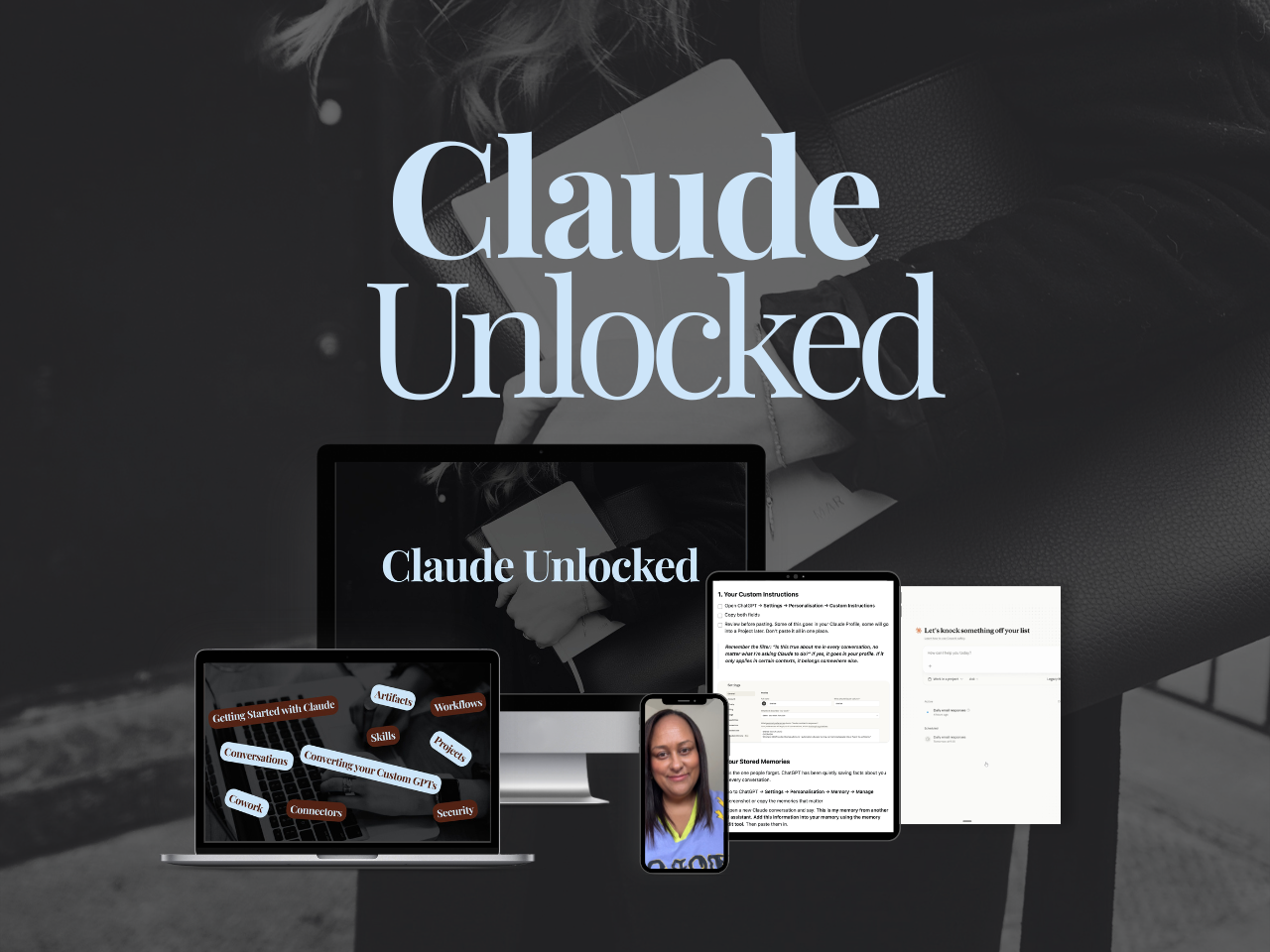
If you want the full walkthrough of how Projects, Skills, and Connectors work together for a solo business, that's exactly what's inside Claude Unlocked, including the exact sequence I'd use to set this up.
Key Takeaways
The short version of everything above:
Connectors give Claude access to your actual tools: Instead of copy-pasting context in, Claude can search your Gmail, read your Drive files, check your calendar, and pull content from Notion, in real time, in the same conversation.
Setup takes under 60 seconds: Find the connector in the directory, click Connect, authorise access with your existing account. Done. You only need to authorise once.
Start with the Google trio: Gmail, Google Drive, and Google Calendar are free on all plans and cover the three most common solo founder workflows: emails, documents, and scheduling.
Combine connectors for multi-step tasks: One prompt can move across Gmail, Drive, and Canva simultaneously, pulling a document, drafting copy, and building a design without switching apps.
Frequently Asked Questions
Are Claude Connectors free?
Some connectors are available on all plans including Free — Google Drive, Gmail, Google Calendar, and Canva are among them. The full connector directory and unlimited custom connectors require a paid plan. Check the current directory at claude.ai/directory/connectors, as Anthropic updates plan availability regularly.
Do I need to be technical to set up Claude Connectors?
No. Built-in connectors in the directory are set up with a few clicks and a standard browser login — no code, no config files, no developer knowledge required. If you want to build a custom connector for a tool that isn't in the directory, that does require technical knowledge, but for the tools most solo founders actually use, you're covered without it.
Is it safe to connect my Gmail and Google Drive to Claude?
Anthropic uses OAuth for authorisation meaning you never share your password with Anthropic, only with Google. Claude can only access data you explicitly ask it to retrieve, and it can only see data you already have access to in Google. Anthropic does not train its models on your Gmail or Drive connector data. You can disconnect at any time from your Claude settings.
What's the difference between a Claude Connector and a Claude Skill?
A Skill is an instruction file that tells Claude how to work — your brand voice, your writing rules, your business context. A Connector gives Claude access to where your work actually lives — your Gmail, your Drive, your Notion workspace. Skills shape how Claude thinks. Connectors give Claude something to think about. They're designed to work together: Skills carry your voice and context, Connectors give Claude the live data to apply them to.
Can Claude send emails through Gmail?
No. Claude can search your inbox, read email threads, and create drafts in your Gmail account — but it cannot send emails on your behalf. You always review and send manually. This is a deliberate design choice, and the right one.
What happens if I turn on too many connectors at once?
Every active connector adds a tool description to your conversation context, which uses tokens before Claude has read a word of your message. With many connectors active simultaneously, responses slow down, token usage goes up, and Claude can sometimes get confused about which tool to use. The fix: only toggle on the connectors relevant to each specific conversation.
Can I use Claude Connectors inside Claude Projects?
Yes. Google Drive files can be added directly to a Project as living knowledge, so every conversation in that Project has access to the latest version of your documents — and updates automatically when you edit the file in Drive. Other connectors can be toggled on per-conversation inside a Project in the same way as regular chats.
Ready to Connect Claude to Your Business?
Start with one connector…whichever tool you open most on a typical work day. Gmail or Google Drive are the easiest entry point for most solo founders. Connect it, run a few of the prompts above, and see what changes.
If you want the full picture — how Projects, Skills, and Connectors work together to build a real AI layer in a solo business — that's exactly what Claude Unlocked covers.
It's $47 and it's the fastest way to go from "I use Claude sometimes" to "Claude runs parts of my business."
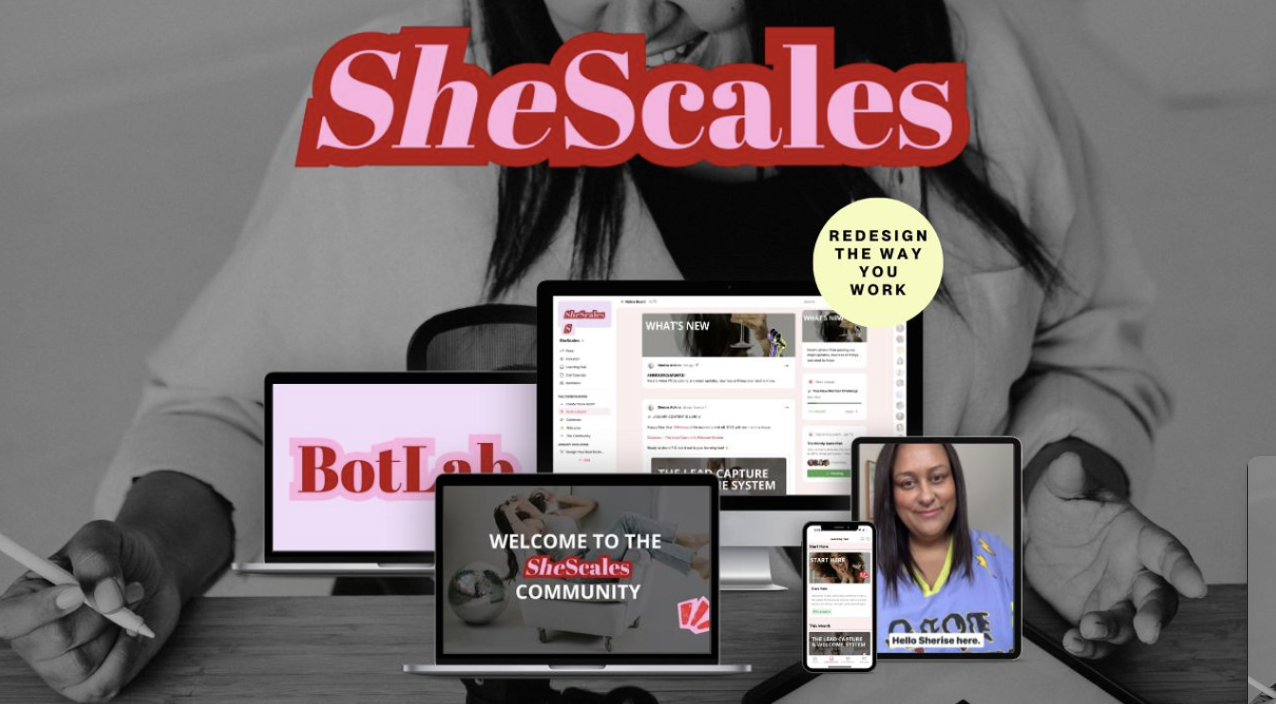
And if you're past the learning phase and ready to build real systems, SheScales is where we do that together, Each month I build a new system in my own business, pull it apart, explain every decision, and hand over every component so you can build your version. It's for builders, not browsers.
MEET THE AUTHOR

HEY, I'M SHERISE
I'm an AI strategist and educator based on the Central Coast of NSW, Australia. I help solo founders install AI systems that scale their business without scaling their workload and remove low-value work from their business so they can spend more time in strategy, creativity, and the work that actually moves the needle.
I run SheScales, the AI implementation community built for the person who IS the business and the whole team. I'm the founder behind 40+ AI assistants across ChatGPT and Claude, the Brand Playbook App, and a growing library of skills and systems used daily by hundreds of solo businesses.
I teach the Architect Method: the shift from chatting with AI to giving AI a job. It's the thinking framework for spotting where AI can genuinely help in your business, knowing how to architect the system, and deciding whether something should be a Skill, a Project, a GPT, an automation, a combination of these, or stay manual.
I'm not here to inspire you. I'm here to hand you the architecture.
