How to Use Claude Skills: What They Are, How to Install Them, and Where to Start
Last updated August 2026
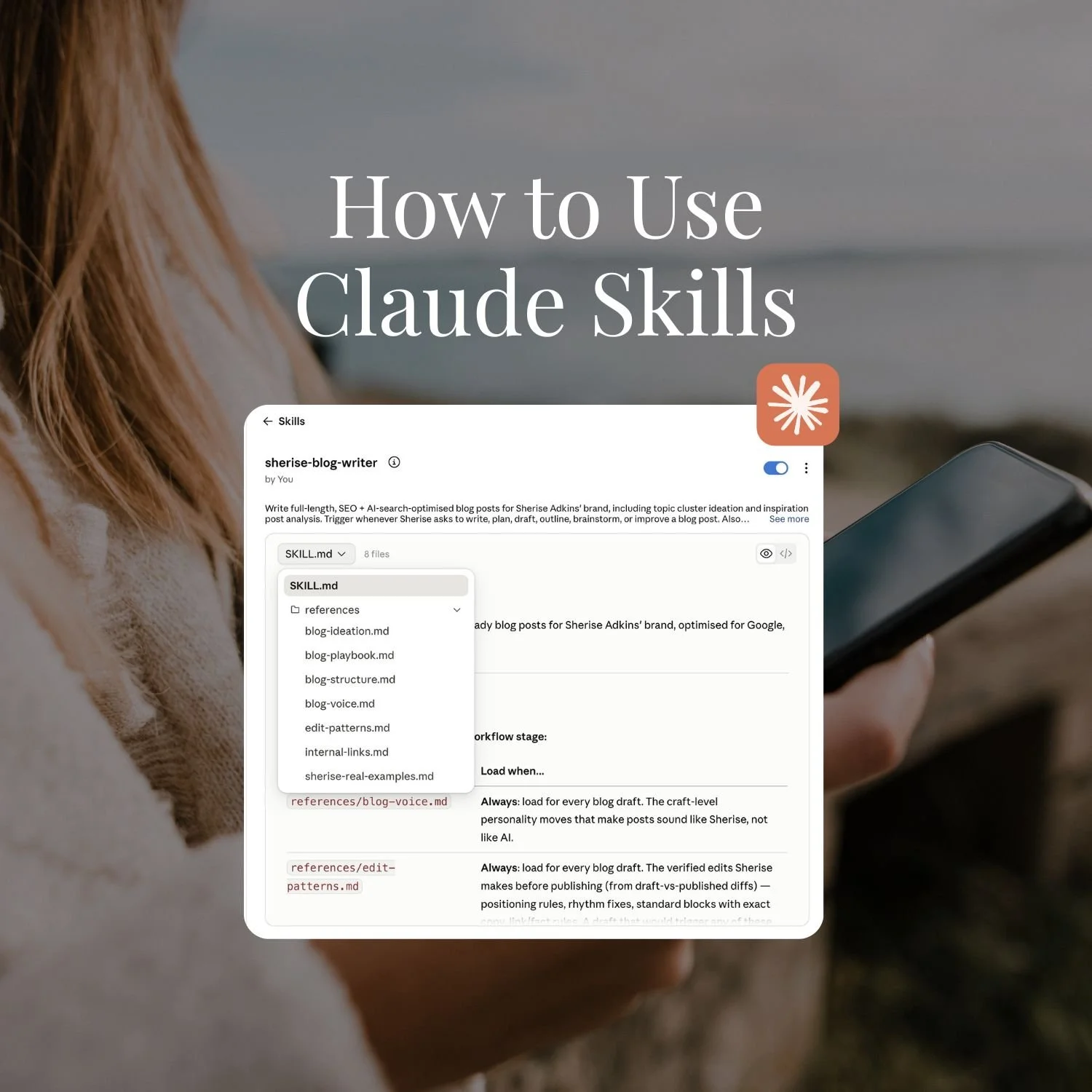
A few weeks ago, I typed one sentence into a fresh chat: “I want to write a blog post about the difference between a Claude Skill and a Custom GPT.” Nothing else.
Claude told me it was triggering two things:
My blog writer Skill
My brand playbook Skill
Then it started competitive research, which is step one of how I always want a blog post approached. I hadn't asked for any of that. I'd described a topic, and Claude already knew the process, the voice, and the standard.
That's what a Skill actually is. A standing instruction Claude carries into any conversation, so you brief the idea and it handles the rest exactly how you'd want it done.
Here's what skills are, how to turn on the ones you already have, how to install your own, and where the real payoff is.
Claude Skills are reusable instruction sets that give Claude a specific job to do. Instead of explaining your standards and processes every conversation, Claude already has them before you start. Some are built into your account and just need switching on. Others you install yourself, and once they're in, multiple Skills can work together automatically.
TL;DR:
A Skill is a standing instruction set. Claude loads it automatically when a task matches. You don't trigger it manually, and you don't re-explain yourself.
Two types exist. Built-in Skills (Anthropic's file-handling ones, already in your account) and custom Skills (a SKILL.md file you or someone else builds, installed as a ZIP).
A Skill has three layers. A short description Claude always reads, the SKILL.md instructions it loads when relevant, and reference files it pulls in only when needed. That's what keeps it cheap to run.
Multiple Skills stack, and they follow you everywhere. The same Skill works across regular chats, Projects, Cowork, and Claude Code. Build it once, use it everywhere.
Installing is just uploading a file. Upload it under Customize, then Skills. That's the whole mechanical part.
New here? This blog is for the solo founder who wears every hat in the business and wants real AI systems and workflows running things, not just piecing it together in the chat. Start here →
Here’s what we’ll be covering:
What Are Claude Skills (And Why Do They Matter)?
A Skill is a structured set of instructions, rules, and reference files Claude loads when it spots a task that matches the Skill's job description. Once it's in your account, it runs on its own. You don't trigger it, you don't paste anything in, you don't re-explain. Claude recognises the task and applies the Skill.
Without Skills, Claude is a blank slate every time you open it. Brilliant, but it knows nothing about how you work until you tell it, again, in that conversation.
With a Skill installed, Claude starts already knowing. It’s a workflow. The how: how you like a blog structured, how you want research done before you write, how meeting notes get formatted before they go to a client. The operational knowledge that lives in your head and usually has to be re-explained every single session.
It's the difference between briefing a freelancer from scratch every morning and working with one who's been with you a year.
This is also the thing that closes the gap between using Claude a bit and actually getting your money's worth from it. Most people run Claude at a fraction of what it can do, because they're re-explaining context constantly instead of building it at once.
Skills aren't the only way Claude holds context. A Skill carries job-specific instructions for a particular task. A Project is a whole workspace that holds persistent context about you and your business across sessions. Both are useful and they work together, more on exactly how in a moment. I've covered the Project side in How to Build a Claude Project, and if you're weighing Skills against the Custom GPT approach, Claude Skills vs Custom GPTs breaks that down.
The Anatomy of a Skill
Here's what's actually inside one, using my real blog writer Skill as the example.
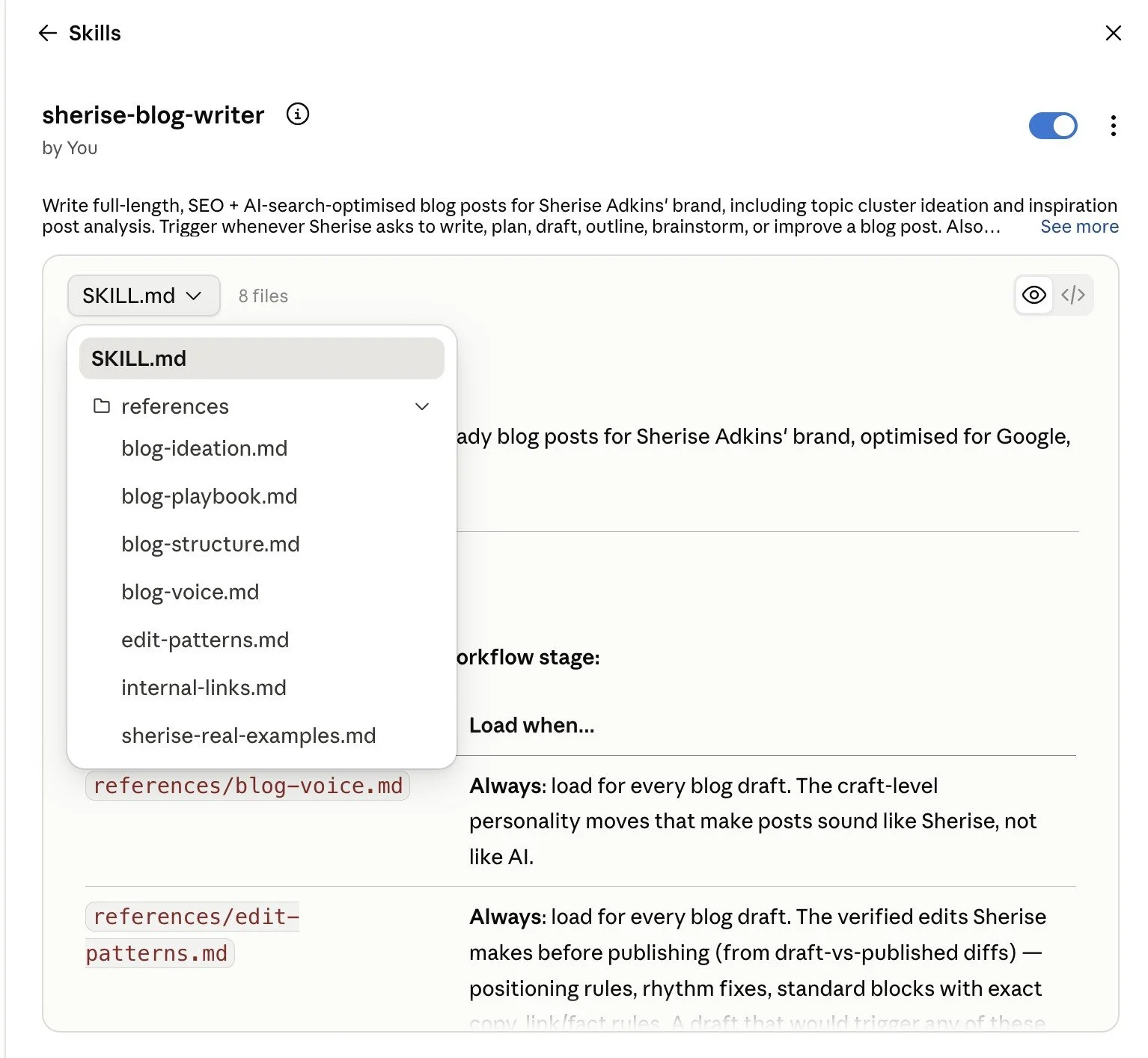
Every Skill has three parts.
The description
This is the only part Claude reads by default, and it's what decides whether the Skill gets called in at all. For the blog writer, it says to trigger whenever I ask to write, plan, draft, outline, brainstorm, or improve a blog post, and it lists specific phrases: “write me a blog,” “blog post about X.” It also says when not to trigger, so Skills don't fire across each other when they shouldn't. Both halves matter. A vague description means Claude has nothing to match against, and it just sits there doing nothing.
The SKILL.md file
This is the recipe. The actual SOP. For the blog writer, it tells Claude what to load and do at each stage: when brainstorming, pull this reference; when building an outline, bring in this one; when writing the draft, apply this; when matching the CTA to a specific offer, check this. It also tells Claude “you already know me, so don't ask discovery questions,” because that context lives in a separate Skill, my Brand Playbook, which works across everything I do. I don't re-explain my business inside every single Skill I build.
The reference files
These sit inside the Skill and get pulled in only at the stage that needs them. My blog writer has a Blog Ideation file (relevance to the audience's problem, commercial alignment to offers, search visibility, formatting, what to avoid), a Blog Playbook (writing for SEO and AI search together), a Blog Structure file (exactly how I want every post delivered), and an Internal Links file so the post can cross-reference my existing content properly.
It's genuinely detailed under the surface. But Claude only reads the short description by default. The SKILL.md and the reference files only load when a task actually matches. That's what keeps a Skill cheap to carry around, and it's the whole reason you can have dozens installed without them clogging up every conversation.
Seeing It in Action
This is the moment from the start of this post, in full.
I opened a normal chat and typed: “I would like to write a blog post about the difference between a Claude Skill and a Custom GPT.” That's it.
Claude responded by naming what it was doing: triggering the blog writer Skill and the brand playbook Skill, then starting competitive research, which is step one of my actual blog workflow. Both Skills came in on their own. I didn't ask for either of them. I just briefed the topic, and Claude matched it to the right Skills and started the process exactly how I'd want it run.
That's the entire point of building Skills properly. Once they're set up, briefing an idea is the whole job. Claude handles the rest.
The Built-In Skills You Probably Haven't Turned On Yet
Claude comes with a set of Skills already built in. Anthropic made them, Anthropic maintains them, and they're sitting in your account right now. Most people have never switched them on.
They handle files. Specifically: PDF, Word documents, Excel spreadsheets, PowerPoint, and CSV. Turn them on and Claude can read, edit, summarise, and actually work with those file types directly in a conversation, instead of just talking about them in the abstract.
For a solo founder, that's not a small thing. Hand Claude a PDF and have it pull the key points, give it a spreadsheet and have it work through the numbers, or ask it to produce a properly formatted Word document you can send straight to a client.
You'll find Skills under Customize, then Skills in the sidebar.
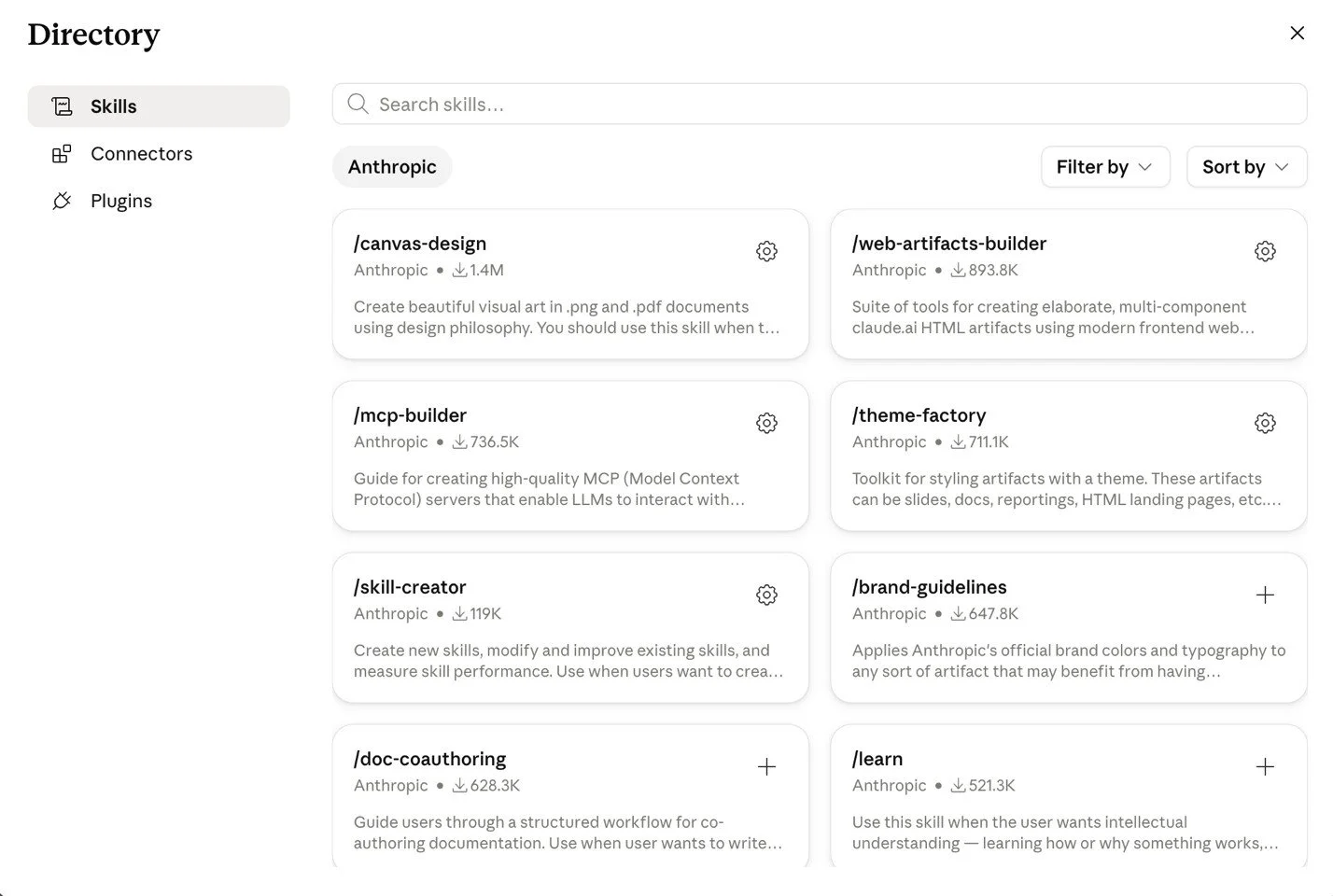
One thing to check first: Skills rely on Claude being able to work with files, so make sure “Code execution and file creation” is switched on under Settings, then Capabilities.
With that on, here's my recommendation: turn all the built-in file Skills on. There's no downside. They extend what Claude can do with the exact file types you already deal with every week, and there's nothing to maintain once they're enabled.
Quick win: If you do nothing else from this post, go to Customize, then Skills, and switch on the built-in file Skills (you may first need “Code execution and file creation” enabled under Settings, then Capabilities). It takes about a minute and immediately makes Claude more useful with the documents and spreadsheets you work with anyway.
The built-in Skills cover file handling. Custom Skills are where it gets genuinely interesting, because they're what lets Claude carry your brand voice, your business frameworks, and your offer details into every conversation automatically.
Want the full Claude setup laid out step by step?
This free kit covers every setting worth turning on, how Projects and Skills work, and the exact prompt to export your ChatGPT memory so you're not starting from scratch.
It's the guide I wish I'd had when I started.

Custom Skills: What They Are and Where to Get Them
A custom Skill is one that isn't built into Claude by default.
It comes as a ZIP file containing a SKILL.md instruction file, and you install it into your account yourself. Anyone can make one: Anthropic, a creator like me, or you.
Or, you can build a custom skill yourself. You build a Skill once, install it, and it’s available across every conversation and every Project in your account. You never re-explain from zero. (Once you’ve experienced that, briefing Claude from scratch in a regular chat feels like a step backwards.) When you're ready to make one, How to Build Your First Claude Skill walks through it step by step, no code needed.
This is the layer that carries the things specific to you. Your brand voice rules. Your posting formats. Your frameworks. Your standards. A good custom Skill takes all of that off your plate permanently, the way my blog writer and brand playbook Skills do for me. If you're not sure which one to start with, 10 Claude Skills Every Small Business Should Build lists the ones worth building first.
One important note: only install custom Skills from sources you trust, because unlike the built-in ones, custom Skills can include executable code. My own rule is simple. I use Anthropic's built-ins, Skills I've built myself, and Skills we build inside SheScales. I don't install from unknown sources, and I'd tell you to do the same.
Multiple Skills, Every Surface
Two things about Skills surprise people once they've actually got a few installed.
First, more than one can fire in the same conversation. You saw that above: one topic triggered both my blog writer Skill and my brand playbook Skill at once. Ask Claude for a client report and it might pull your brand guidelines Skill, your reporting format Skill, and a data-analysis Skill together, without you naming any of them.
Second, a Skill isn't locked to the chat window. The same Skill works inside a Claude Project, inside Claude Cowork, and inside Claude Code. If you've got a Project set up for a specific offer and you ask it to draft a sales page, your sales-page Skill gets pulled into that Project automatically. Build it once, and it's available everywhere Claude touches your work.
This is also where the file structure earns its keep. Because Claude only reads each Skill's short description by default, having a dozen or more installed barely costs you anything in a given conversation. The full instructions only load for the one or two Skills that actually match what you're doing.
How to Install a Custom Skill
The word “install” makes this sound more technical than it is. You're uploading a file. That's the whole thing.
1. Get the Skill file from a trusted source: It'll be a ZIP file. Either one you've been given by someone you trust, or one you've built yourself.
2. Go to Customize, then Skills: Same place as the built-in Skills you switched on earlier.
3. Upload the ZIP file: There's an upload option in the Skills area. Select your file.
4. Check it appears in your Skills list: Once uploaded, it shows up alongside the built-ins. That's confirmation it's installed.
5. Test it with a relevant task: Give Claude something the Skill is built to handle, and watch whether it applies it. (More on what to look for in the next section.)
The Newest Way to Build a Skill: Record It
Writing a Skill, or having the skill-creator build one with you, is one path. As of late July 2026 there's a faster one for anything you already know how to do: record it.
In the Claude desktop app, open the + menu and choose Record a Skill. You do the task on your screen the way you normally would, talking through what you're doing and why as you go, and Claude turns the recording into a Skill it can run again. The talking is the important part. It's how Claude picks up the reasoning behind each step, not just the clicks, which is exactly the part that never makes it into a written SOP.
It's available on the Pro, Max, and Team plans, in the Claude desktop app for Mac. One thing to be deliberate about before you hit record: it captures whatever is on your screen, so close anything with client details, account numbers, or logins you don't want ending up in the Skill. Record the task, not your whole desktop.
If you've ever thought "it would take longer to write this up than to just do it," this is the feature that closes that gap. You do the job once, out loud, and you've got the Skill.
You do not have to write one from scratch. Claude can watch you do a task once and turn it into a Skill, which How to Record a Skill in Claude walks through step by step.
How Skills Actually Work in Practice
Once a Skill is installed, here's what's actually happening behind the scenes, in plain terms.
At the start of a session, Claude reads the name and description of each of your Skills. That's a tiny amount of information, just enough for Claude to know what each Skill is for. It doesn't load the full instructions yet. Then, when you give it a task that matches one of those descriptions, it pulls in the full Skill and applies it.
From your side, none of that is visible. You don't type a command. You don't flip a switch. You just ask for the thing, and the right Skill fires on its own.
If the Skill isn’t relevant, it ignores it entirely. So you can have 10 Skills installed and Claude isn’t dragging all of them into a conversation about something unrelated and using up all your tokens.
It loads what it needs, when it needs it. Nothing more. This is called progressive disclosure, and it’s what makes Skills fundamentally different from pasting a long system prompt into every chat.
Before I built my caption Skill, asking Claude for an Instagram caption meant pasting in my voice rules, my format, my hooks, and my no-go list first, then waiting, then getting a caption I'd usually still tweak because some context hadn't carried. Call it ten minutes and three corrections.
After the Skill: I type “write me three caption options for a post about batching content,” and what comes back is already in my voice, already in my format, because the Skill carried all of it. The ten minutes became about thirty seconds.
That's the whole point of Skills. The work of explaining yourself happens once, when you build or install the Skill, instead of every time you open a conversation.
Key Takeaways
Skills give Claude a standing job description: Instead of re-explaining your standards every conversation, Claude already has them. The shift is from briefing a blank slate each time to working with something that already knows you.
A Skill has three layers, and that's what keeps it cheap: The description Claude always reads, the SKILL.md it loads when relevant, and reference files it pulls in only when needed. Dozens of Skills installed barely touch a single conversation.
You already have built-in Skills: Anthropic's file-handling Skills (PDF, Word, Excel, PowerPoint, CSV) are already in your account. Switch them on under Customize, then Skills. No downside, immediate upside.
Multiple Skills stack, and they follow you everywhere: More than one Skill can fire in the same conversation, and the same Skill works in regular chats, Projects, Cowork, and Claude Code. Build it once, use it everywhere.
Custom Skills carry your specifics: Brand voice, formats, frameworks, standards. Only install from sources you trust, since custom Skills can include executable code.
Installing is just uploading a file: A custom Skill is a ZIP file you upload under Customize, then Skills. It runs automatically once it's in, no commands or manual triggering required.
Frequently Asked Questions
What's the difference between a Claude Skill and a Claude Project?
A Skill carries instructions for a specific, repeatable task, and it applies automatically when that task comes up, across any conversation. A Project is a dedicated workspace that holds persistent context about you and your business, along with any files you attach, for an ongoing function. Put simply: a Project is where the work lives and what Claude knows about you broadly; a Skill is how Claude handles one particular job. They're complementary, and a Skill can be pulled into a Project automatically when it's relevant.
Do Skills work across all Claude plans?
Skill availability depends on your plan, and Anthropic updates this over time, so the most reliable answer is to check your own account under Customize, then Skills. If you have a paid plan and use Claude regularly for your business, it's worth confirming Skills are enabled, because they're one of the features that does the most to get you consistent output.
Will having lots of Skills installed slow Claude down or use more of my context?
Barely. Claude only reads each Skill's short description by default, which costs almost nothing. The full SKILL.md and any reference files only load when a task actually matches that Skill. That's the whole design, and it's why having thirty Skills installed doesn't mean thirty Skills' worth of instructions loaded into every conversation.
How do I know if a Skill is working?
Give Claude a task the Skill is built to handle and watch two things. Did it apply the Skill without you having to point at it? And did the output match the standard the Skill is meant to enforce? If Claude produces work in your voice or format without you re-explaining anything, the Skill is doing its job. If it doesn't seem to apply, the Skill's description may be too vague for Claude to match it to the task.
Can I build my own Skill?
Yes, and it's far less technical than it sounds. A Skill is a plain-text instruction file, not code. If you can write a detailed brief, you can build a Skill. Claude even has a built-in skill-creator that interviews you and assembles the file for you, so you're not starting from a blank page. The dedicated guide walks through the full process.
Are Skills safe to install?
The built-in Skills from Anthropic are completely safe, since Anthropic builds and maintains them. For custom Skills, the same sensible rule applies as with anything you install: only use sources you trust, because custom Skills can include executable code. Stick to Anthropic's built-ins, Skills you've built yourself, and creators you have reason to trust, and you're on safe ground.
Where to Start
Do the easy thing first. Go to Customize, then Skills, and switch on the built-in file Skills. That alone makes Claude noticeably more useful this week, and it costs you about a minute.
Then, when you're ready for the layer that carries your actual business, that's where custom Skills come in. Start with one built around the task you're most tired of re-explaining.
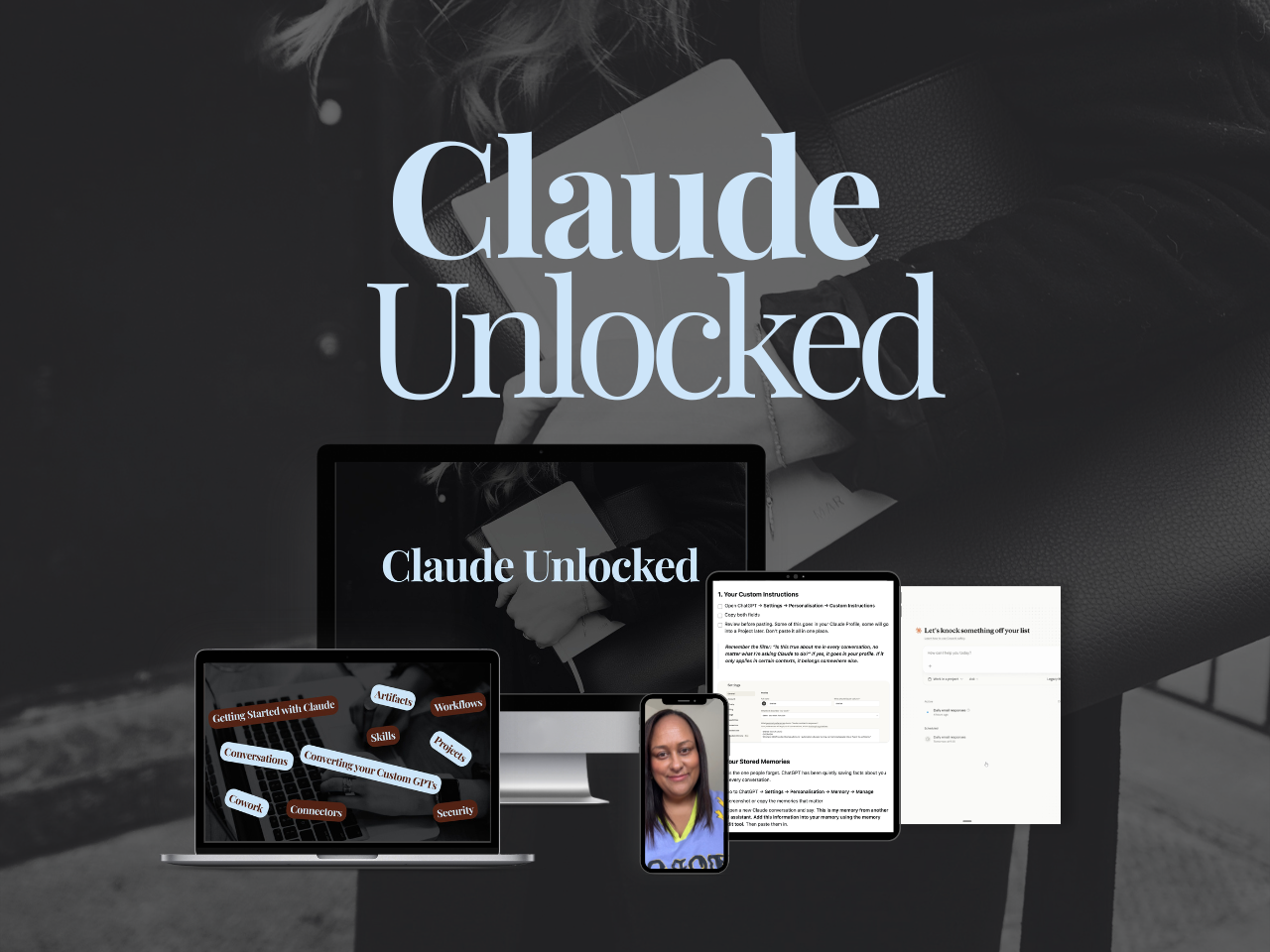
If you want the full Claude setup in one place, Projects, Skills, Cowork, and Connectors, working together rather than picked up piecemeal, Claude Unlocked is where I'd point you. It's the fastest way to go from using Claude as a clever chat box to having it actually set up around how your business works.
(For the broader picture of putting Claude to work day to day, How to Actually Use Claude for Business is a good companion read.)
And if you're ready to build actual systems, not just learn the tools, SheScales is where that happens.
Each month I build a real system in my own business, pull it apart, and hand over every component so you can build yours. The use cases above aren't hypotheticals. They're what's being built inside SheScales right now.
MEET THE AUTHOR

HEY, I'M SHERISE
I'm an AI strategist and educator based on the Central Coast of NSW, Australia. I help solo founders install AI systems that scale their business without scaling their workload and remove low-value work from their business so they can spend more time in strategy, creativity, and the work that actually moves the needle.
I run SheScales, the AI implementation community built for the person who IS the business and the whole team. I'm the founder behind 40+ AI assistants across ChatGPT and Claude, the Brand Playbook App, and a growing library of skills and systems used daily by hundreds of solo businesses.
I teach the Architect Method: the shift from chatting with AI to giving AI a job. It's the thinking framework for spotting where AI can genuinely help in your business, knowing how to architect the system, and deciding whether something should be a Skill, a Project, a GPT, an automation, a combination of these, or stay manual.
I'm not here to inspire you. I'm here to hand you the architecture.
Read this next:
How to Build Your First Claude Skill (A Non-Technical Guide)