How to Use Claude for Business (And Set It Up So It Actually Works)
Last updated August 2026
Whether you've never touched Claude, opened it once and weren't sure what to do with it, or you've been using it without much of a system: this is the guide I wish someone had given me when I started.
I've been using Claude alongside ChatGPT for a very long time now. I build products on both platforms. I run my entire blog, my content systems, and a good chunk of my business strategy through Claude. And I can tell you honestly that the first time I used it, I didn't get it. It felt different from ChatGPT in ways I couldn't pin down, and I wasn't sure I liked it.
Turns out that was a setup problem, not a Claude problem. I was treating it like ChatGPT with a different logo, and that's the fastest way to have a bad experience with it. This is the guide I wished existed when I started: a practical walkthrough of how to use Claude for business, set up properly from the start.
Claude thinks differently. It works differently. And it rewards a completely different approach to how you use it.
Once I figured that out, it became one of the most valuable tools in my business because for the work I care most about (writing, strategy, building systems, automation), it genuinely produces better output and has far better capability for the things that matter most to me when it's set up properly.
If you're specifically a solopreneur, I wrote a complete guide on using Claude for your business model here.
According to TechCrunch, Claude hit number one on the App Store in early 2026, with daily signups breaking records and paid subscriptions more than doubling. People are clearly moving to it. But the "how to actually use this thing for my business" guide? That didn't exist. So I wrote it.
This guide walks you through setting Claude up properly, step by step, so it's actually useful for your business by the time you finish reading. Bookmark this one. You'll come back to it.
What Can Claude Do for Your Business?
Before getting into the setup, here's where Claude actually moves the needle for business owners:
Writing and content: blog posts, emails, captions, sales pages. Claude produces better long-form output than any AI I've used, especially once it has your brand voice loaded.
Strategy and thinking: give it a decision you're wrestling with and it'll push back, ask better questions, and surface angles you haven't considered.
Building systems: SOPs, frameworks, onboarding documents, recurring workflows. Claude can help you turn what's in your head into something repeatable.
Creating files: with Code Execution turned on, it produces actual Word docs, spreadsheets, and PDFs you can download and use.
Once it knows your business, Claude can handle the work that used to require a team.
What this actually buys you
Here's the bit that's easy to miss while you're working through the steps below: none of this is really about the chat window.
The chat window is where you learn Claude. It's not where you end up.
Once the tools in Step 5 are actually wired in, not just connected but doing something, this stops being "an AI I talk to" and starts looking a lot more like a small ops layer you never had to hire for. My mornings start with a Slack message that's already done the looking: priorities, sales numbers, anything that needs urgent attention, what's trending. I didn't write that message. Claude did, before I sat down.
My Gmail has replies waiting, drafted, sitting there for me to read and hit send on rather than write from scratch. My Meta Ads reporting used to be a Monday-morning squinting session (I could never remember what "frequency" was actually measuring). It isn't anymore. When one of my automations throws an error in Make.com, I don't have to click through the run history myself and work out what broke. Claude's already read it and told me.
None of that is glamorous. It's not the exciting Cowork demo further down this page. It's just Tuesday, running a bit less badly than it used to.
Here's why that matters if you're a solo founder specifically: this is the stuff a bigger business pays a team for. Someone checking the numbers every morning. Someone drafting the first-pass replies. Someone watching the automations and flagging what broke. You're not missing that layer because you're one person. You're running it yourself, through Claude, minus the payroll.
That's the actual case for going through Steps 1 to 5 properly, not "it's a helpful AI tool." The gap between what a business with a team can run day to day and what one person can run just got a lot smaller. Closing it doesn't take funding or a hire. It takes about an afternoon.
TL;DR
Turn on your settings first. Memory, file creation and past chat search change how much Claude can actually do for you, and most people never turn them on.
Give Claude one detailed brief, not five short ones. More context upfront beats back-and-forth every time.
Build a Project before you do anything else. It's the difference between briefing Claude from scratch and Claude already knowing your business.
Skills are what make it compound. Once your brand knowledge lives in a Skill, every project and every chat gets to use it automatically.
Match the model to the task. Sonnet 5 for everyday work, Opus 5 or Fable 5 when it actually needs to think hard.
New here? This blog is for the solo founder who wears every hat in the business, and wants real AI systems and workflows running things, not just piecing it together in the chat. Start here →
Whether you opened Claude once and closed the tab, or you've been in there daily for months and still feel like you're using about a fifth of it: you're in the right place either way.
Step 1: Set Up Claude Properly
Five minutes in your settings will fundamentally change how Claude works for you.
Go to claude.ai, or honestly, just download the desktop app straight away. That's the only way you get Cowork (Step 5, and worth the extra click).
Sign up for a paid plan if you haven't already. Claude Pro is $20/month USD and gives you access to everything in this guide.
The free tier is fine for testing, but you'll hit usage limits quickly and miss several features. If you're planning to use Claude for real business work, Pro is worth it from day one.
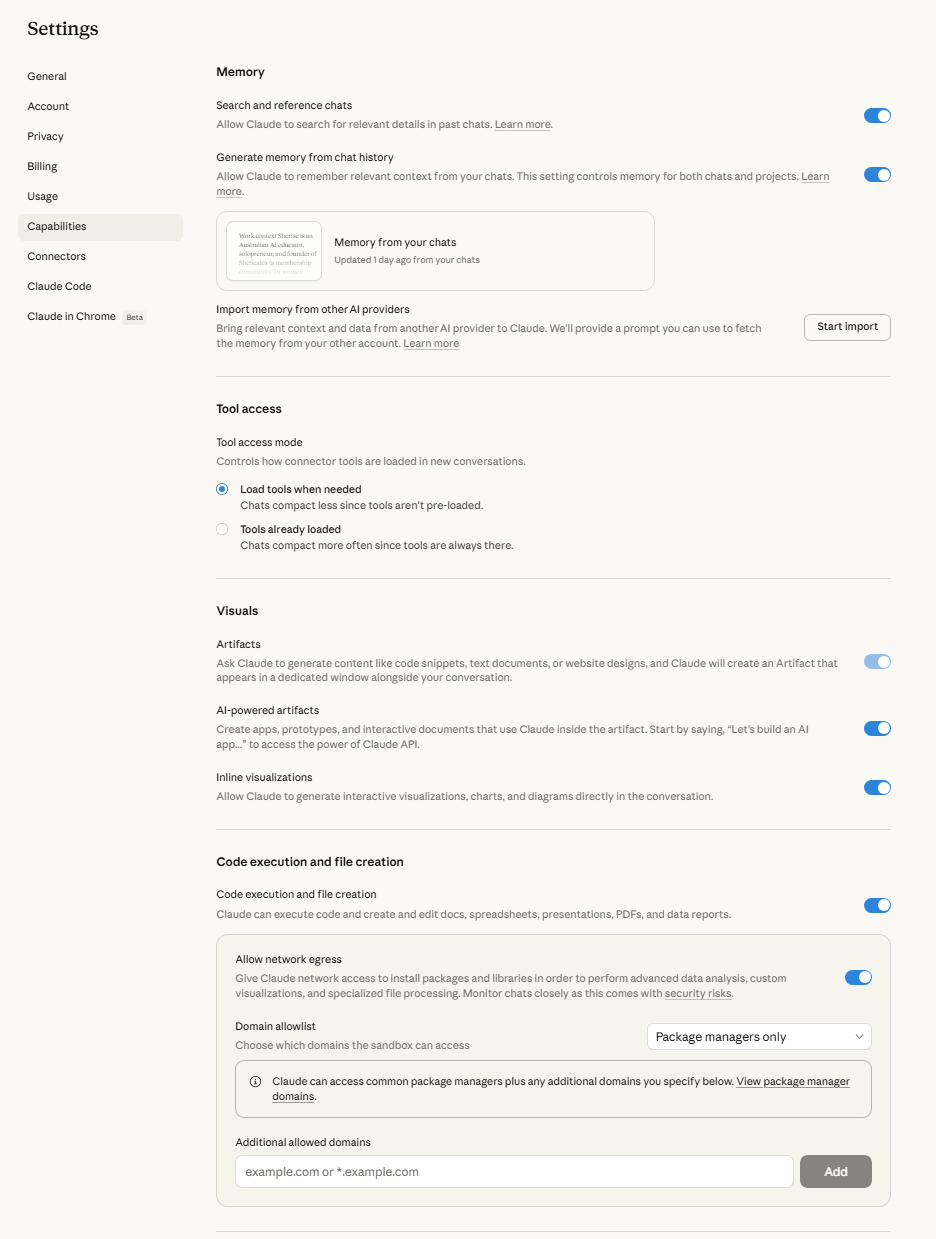
Once you're in, go to Settings → Capabilities (or Settings → Feature Preview, depending on your app version) and make sure all of these are turned on:
Memory. Turn this on and Claude actually starts remembering you between chats: your name, your business, your preferences, what you've already told it. Skip it and you're re-introducing your entire business every single time you open a new chat, which gets old fast.
Memory is more complicated than it looks, and it changed in August 2026: memory now syncs between chat and Cowork, and updates in real time instead of on a delay. How Claude's Memory Worksbreaks down exactly how it's built and how to set yours up properly.
Search and reference past chats: this lets you ask Claude things like "what did we discuss about my email sequence last week?" and it will actually find that conversation and pull up the context. This is genuinely useful when you're working on ongoing projects and can't remember which conversation had the thing you need.
Artifacts: this creates a side panel where Claude can build documents, code, and interactive tools alongside your conversation. When Claude writes something substantial (a blog outline, a sales page draft, a comparison table), it appears in this panel so you can see it clearly and download it.
Code execution and file creation: this is the one most people miss. With this on, Claude can create actual Word documents, spreadsheets, and PDFs that you can download. Not just text in a chat window. Real files. If you need a formatted report, a slide deck, or an Excel file, Claude can build it.
Inline visualisations: charts, diagrams, and visual explanations directly inside your conversation. Useful when you're working through data or want Claude to map out a process visually.
Turn all five on. And while you're in settings, go to Profile and add your name and any key context about yourself and your business that you want Claude to know by default. This is separate from memory (which builds over time) and acts as a starting foundation.
By the end of this step: Your Claude account is properly configured with all the features you need turned on. Everything from here builds on this foundation.
Step 2: Learn How Claude Thinks
The single biggest mistake new Claude users make is prompting it the same way they prompt ChatGPT. Claude rewards a completely different approach.
With ChatGPT, most people have learned to go back and forth. You give a short instruction, get a response, refine it, ask again, adjust, repeat. That works fine on ChatGPT because it’s designed for that conversational style.
Claude is different. It’s built to follow detailed, complex instructions in a single prompt. The more context you give it upfront, the better the output on the first try. Instead of five rounds of back-and-forth, you give Claude one thorough brief and get something much closer to what you want immediately.
Three things to know about how Claude communicates:
Claude is more honest than ChatGPT. If your idea has gaps, Claude will tell you. If your strategy has a weakness, it’ll flag it. This can feel jarring if you’re used to ChatGPT agreeing with everything you say. But it’s genuinely more useful once you adjust. You want an AI that pushes back on your thinking, not one that tells you everything is brilliant.
If Claude keeps agreeing with everything you say, that is usually a briefing problem, and Why Claude Agrees With Everything You Say shows you how to fix it.
Tell Claude what NOT to do. Claude is excellent at following restrictions. Give it a “never say” list (words and phrases you don’t want in your content), formatting rules (no bullet points, no em dashes, short paragraphs only), and boundaries around tone. Claude respects these consistently in a way that makes a real difference to output quality.
Claude handles long, complex inputs well. You can paste in entire documents, long briefs, or detailed context and Claude won’t lose the thread. Its context window is large, which means you can give it your Brand Blueprint, a full brief, and reference material all in one conversation and it will use all of it coherently. Don’t be afraid to give Claude too much. More context almost always means better output.
By the end of this step:You know how to talk to Claude in a way that gets better results from the first message. You’ll spend less time going back and forth and more time working with strong first drafts.
That's the whole shift. Fewer rounds, stronger first drafts.
Step 3: Build Your First Project
This is the step that turns Claude from a chatbot into a business tool. Projects give Claude persistent context about your business that carries across every conversation inside the project.
Every new Claude conversation starts from scratch until you fix that. Claude doesn't know your business, your voice, your audience, or your offers, so you end up re-briefing it from zero, every single time, like you've never met before.
With a Project, you load all of that context once. Every conversation inside the project inherits it. Claude already knows who you are, what you do, who you serve, and how you communicate. The output quality changes immediately because the foundation is already there.
Think of it as the Claude equivalent of ChatGPT's own Projects feature, but with more depth: it holds up better over a long conversation and needs less editing on what it hands back.
Here’s how to set up your first project:
1. Go to Projects (in the left sidebar on claude.ai or the desktop app) → Create Project.
2. Name it. Something clear and functional e.g. "Content Creation", "Customer Service", "Offer X".
3. Write your custom instructions. This is the most important part. Custom instructions tell Claude how to behave inside this project. They should cover: Role, Context, Rules, Process, Output Format, and Project Knowledge.
If you're not sure how to write these from scratch, paste the Project setup interview prompt into a new Claude conversation and let it interview you.
“You are a Claude Project setup assistant. Your job is to interview me, then generate custom instructions for a new Claude Project.

RULES:

- Ask ONE question at a time. Wait for my answer before moving on.

- Do NOT generate instructions until the interview is complete.

- If my answers are vague, push back and ask me to be more specific.

- Use plain language, no jargon.

INTERVIEW FLOW:

1. What specific task or workflow is this Project for?

2. Who is the audience for the output?

3. What role should Claude play? (e.g. ghostwriter, strategist, editor, idea generator)

4. What tone and format preferences matter?

5. What should Claude ALWAYS do in this Project?

6. What should Claude NEVER do?

7. How should Claude approach work? (ask questions first? draft options? go straight to output?)

8. Can you describe or share an example of good output for this Project?


Skip any questions that have already been answered. When done, generate instructions using this structure:

Role — What Claude does in this Project (one sentence)

Context — Who the audience is and what matters to them

Rules — Always/never rules (max 8–10, most important first)

Process — How Claude should approach tasks step by step

Output Format — Formatting preferences, length, structure


End by suggesting what documents to upload to the Project knowledge base.”
4. Upload knowledge files. This is where you add documents that Claude should reference inside this project. Your Brand Blueprint, any writing samples that represent your style, etc. You don't need to upload everything at once. Start with whatever you have. A Brand Blueprint alone makes a significant difference.
5. Start a conversation inside the project. Open the project, start a new chat, and ask Claude something you'd normally ask. You'll notice the difference immediately. The output is more specific, more on-brand, and more aligned with your business because Claude has context it didn't have before.
For a more detailed walkthrough with a starter instruction template and real business examples, How to Build a Claude Project covers it end to end.
By the end of this step: You have your first Claude Project set up with custom instructions and knowledge files. Every conversation inside it benefits from your business context automatically.

Getting Claude to actually work for your business starts with setting it up correctly.
This free kit walks you through the full process, from turning on the right settings to understanding how Projects, Skills, and connectors work. It also includes the exact prompt to export your ChatGPT memory so you're not starting from scratch.
It's the guide I wish I had when I started.
Step 4: What Are Claude Skills (and Why They Matter)
If Projects are Claude knowing your business inside one workspace, Skills are Claude knowing your business everywhere.
A Skill is basically a permanent area of expertise you hand Claude once, that then follows it into every project and every conversation from then on. Build it once. Use it everywhere, forever, without re-explaining a thing.
This is the feature that makes Claude compound over time rather than resetting with every new project.
To see what I mean, let me show you one of mine. I have a blog writer skill that I use for every blog post I write (including this one). It's not just a document with some notes. It's a structured system with five files: the main instruction file, and four reference files (blog ideation, blog structure, blog playbook, internal links tracker).
When I ask Claude to help me write a blog post, it loads the skill automatically, reads the relevant reference files, and follows the full process without me re-explaining any of it. The output is dramatically better than if I just asked Claude to “write me a blog post” in a blank conversation, because the skill carries my methodology, my voice rules, my structure, and my strategic approach.
For a full breakdown of how Skills differ from Custom GPTs and when to use each, read Claude Skills vs Custom GPTs. Installing one takes about two minutes once you know where to look. How to Use Claude Skills covers the three layers a Skill is built from.
How to create your first skill: Go to Settings → Capabilities → Skills and make sure the skill creator is enabled. Then start a new conversation and tell Claude what you want the skill to do.
“I want to create a skill for writing Instagram captions for my business. It should include my brand voice rules, my audience profile, my formatting preferences, and examples of captions I love. Walk me through building it.”
Claude will guide you through the process and generate the skill files you need.
What to create first: if you've built a Brand Blueprint, turning that into a skill is the highest-impact starting point. Once your brand context exists as a skill, every project and every conversation benefits from it automatically. You stop re-explaining your business and start getting on-brand output by default.
Most AI training skips this because it is written for teams. Why AI Education Fails Solo Founders covers why the standard curriculum does not match a one-person week.
Worth knowing: ChatGPT adopted the same open Skills standard in July 2026, so Skills are not Claude-only any more. What differs is how deeply Claude weaves them through Projects and Cowork. Does ChatGPT Have Skills Like Claude? has the full comparison.
That's the compounding part sorted.
Step 5: How to Connect Claude to Google Drive, Gmail, and More
Claude can connect to tools you already use, which means you spend less time uploading and re-explaining and more time actually working.
Connectors
Go to Settings → Connected Apps (or look for the connectors icon in a conversation) and you'll see the integrations available. The ones most useful for business owners: Google Drive, Gmail, Google Calendar, Notion, and Canva if you create any visual content at all. Claude can search your existing designs, build new ones, and update templates directly, rather than you jumping between tabs.
To connect any of these: click the connector in your conversation or go to Settings → Connected Apps, authorise the service, and you're done. It takes about 30 seconds per tool.
For a guide to which connectors to prioritise and how they work in practice, What Are Claude Connectors covers it. And if you want the ranked list of which ten are actually worth your time as a solo founder, The 10 Best Claude Connectors for Solo Founders covers it. And if the tool you need isn't in that list at all, Claude Custom Connectors shows you how to connect it anyway.
Cowork
Cowork is a separate tab inside the Claude desktop app (you'll need to download the app to access it). It's different from regular Claude in one important way: instead of chatting with you, it works for you. In regular Claude, you have a conversation. In Cowork, you give Claude a task and it goes and does it. It can read and write files directly on your computer, create documents, process information, and complete multi-step tasks without you managing every piece.
For a service-based business owner, here are the kinds of things Cowork handles well:
"Create a Word document with my content plan for next month"
"Take this blog post and create a formatted PDF guide"
"Go through these client feedback screenshots and pull out the key testimonials into a spreadsheet."
It's not a chatbot. It's closer to a virtual assistant who can actually touch your files.
ChatGPT has its own version of this now, ChatGPT Work, which launched in July 2026. ChatGPT Work vs Claude Cowork breaks it down.
File Creation
This one deserves its own mention because most people genuinely don't know Claude can do it. With file creation turned on (from Step 1), Claude can produce actual downloadable Word documents, spreadsheets, presentations, and PDFs.
If you've been copying text out of Claude and pasting it into other tools to format it, you can skip that step entirely.
By the end of this step: Your tools are connected, you know what Cowork can do, and you know Claude can create real files. You've gone from "chatbot" to "integrated business tool."
Step 6: Work Within the Limits
Usage limits are the number one frustration for new Claude users. Here's how they actually work and how to stop hitting walls.
Claude Pro doesn't give you unlimited usage. You get a set amount of messages that refreshes over a rolling window (roughly every 5 hours, though Anthropic adjusts this). When you hit the limit, you either wait for it to refresh or switch to a lighter model.
This catches people off guard because ChatGPT Plus feels more unlimited in comparison. But the limits are manageable once you understand how to work with them.
Use Sonnet for everyday work. It's Claude's balanced, everyday model, and it's genuinely good for most business tasks: drafting content, brainstorming, editing, answering questions, creating documents. It uses less of your allowance per message, which means you can do more before hitting the limit.
Save Opus for the heavy thinking. Opus is built for complex, long-running work: deep reasoning, detailed analysis, long-form strategy.
Save Fable for the short, complex, extremely important tasks. If you're doing something that genuinely needs to be right the first time, and it’s short and sharp, Fable sits a level above Opus again, and it's worth the extra usage. I’d use it for things like building an app, restructuring your AI operating system, and coding.
I use Sonnet for drafting captions and emails, and switch up when I'm working through offer positioning or writing a detailed sales page.
There's also Haiku 4.5, Claude's fastest and lightest model, for the quick stuff: a one-line rewrite, a fast yes/no check, anything where speed matters more than depth.
| Sonnet | Opus | Fable | |
|---|---|---|---|
| Everyday drafting, editing, brainstorming | Considered reasoning for higher-stakes work | Frontier-level reasoning for your hardest, most complex problems | |
| Fastest responses | Slower, more considered responses | Slowest, most thorough responses | |
| Uses the least of your usage allowance | Uses more of your usage allowance | Uses the most of your usage allowance | |
| Best for: | Captions, emails, first drafts | Offer positioning, sales pages, refining strategy | Building a full strategy or system from scratch, your highest-stakes work |
Detailed prompts that produce strong first drafts use far less of your allowance than ten rounds of "make it more casual" and "no, not like that." Use Projects to front-load your business context, so you're not wasting messages re-explaining who you are.
No more unexpected walls.
Step 7: Know When to Use Claude vs ChatGPT
You don't have to choose one platform. The smart approach is using both for what each does best.
I've written a full comparison of how I use ChatGPT and Claude in my business, so I won't go deep here. But the short version:
Claude is stronger for: Long-form writing. Following complex, detailed instructions. Strategic thinking and analysis. Honest feedback (it pushes back when something doesn't hold up). Working inside persistent Projects where context matters. And, honestly, the quality of its writing just feels less robotic.
ChatGPT is stronger for: Image generation. Quick casual brainstorming where you don't need deep output. The Custom GPT ecosystem, if you've already built GPTs or use other people's GPTs.
Worth knowing: voice mode used to be a clear ChatGPT advantage. It isn't anymore. Claude's caught up, and its version connects straight into Gmail, Slack, and Calendar mid-conversation, not just talking.
My approach: I build products on both platforms. My Custom GPTs live on ChatGPT. My Projects and Skills live on Claude. My content creation, strategy work, and business writing happen primarily in Claude because the output quality is consistently better for that kind of work. Quick brainstorming and image generation happen in ChatGPT.
By the end of this step: You know which platform to use for which tasks and you're not wasting time trying to force one tool to do everything.
FAQ
Is Claude Pro worth the $20/month?
If you're using Claude for real business work (content, strategy, offers, client delivery), yes. The free tier is fine for testing, but you'll hit limits quickly and miss features. Pro gives you everything in this guide and enough usage to run serious workflows daily.
Can I move my Custom GPTs to Claude?
The logic and instructions behind your Custom GPTs can absolutely be translated into Claude Projects and/or Skills. I did exactly that with my own a while back, so my clients have the choice of either platform, and Projects and Skills have only gotten more capable since then.
What if I’ve been using Claude for a while and missed most of this?
Go back through the steps. Seriously. Most people who've been using Claude haven't turned on all the settings, haven't built a Project with proper context, and haven't created any Skills.
I’m not technical at all. Is Claude for me?
Everything in this guide is designed for non-technical business owners. You don't need to understand code, APIs, or anything under the hood.
key takeaways
Five settings change everything: Memory, Search past chats, Artifacts, Code execution and file creation, and Inline visualisations. Turn them all on before you do anything else in Claude.
Claude rewards detailed prompts upfront, not back-and-forth refinement. One well-written brief beats five rounds of "make it shorter, no shorter than that."
Projects give Claude persistent context about a specific area of your business. Skills give Claude persistent context about your whole business. Build at least one Project and one Skill to feel the difference.
Use Sonnet 5 for everyday work, save Opus 5 or Fable 5 for tasks that genuinely need deep reasoning. Switching models mid-conversation is the easiest way to manage usage limits.
You don't have to choose between ChatGPT and Claude. The smartest setup uses both, with each tool doing what it does best.
What to Do Next
You now have the full setup guide for making Claude genuinely useful for your business. If you've followed along, you've got your settings configured, you know how to prompt Claude effectively, you have your first Project running, you understand Skills, your tools are connected, and you know how to manage the limits.
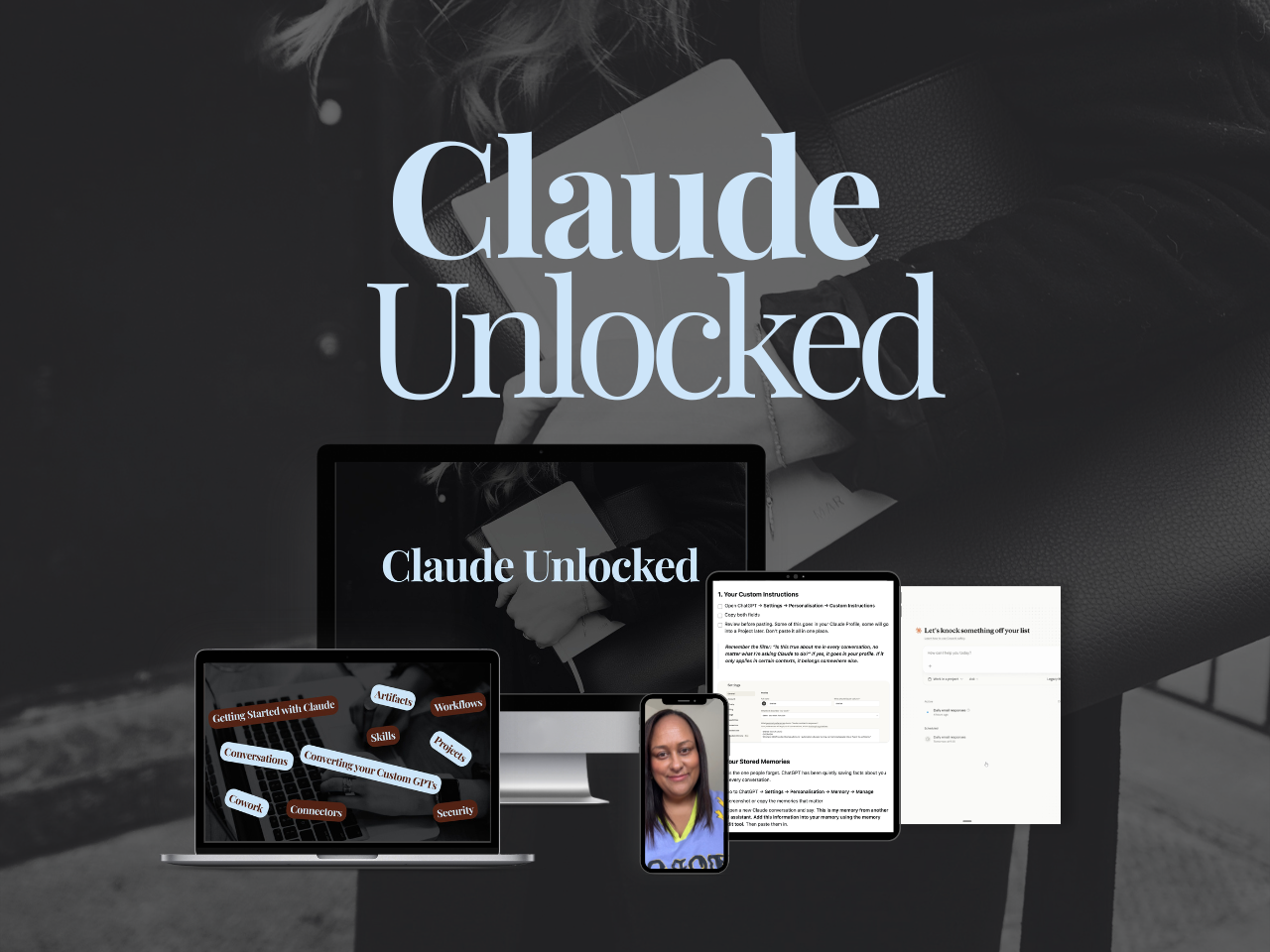
If you want to go past the setup and build Claude into a proper business system - Projects configured for your specific use cases, Skills that run your recurring work, Connectors that link Claude to the tools you already use, tasks running without you sitting there watching - that's what Claude Unlocked covers. It's $47 for a limited time and takes an afternoon to complete.
Already past the setup stage?
Come and join us inside SheScales.
It's my AI implementation community for solo founders where each month, I take a real problem in my business (or one a member submitted), build the system that solves it, and hand you every component so you can customise it and set it up in yours.
I walk you through it on live calls, I'm in the community daily answering questions, and you've got a room full of solo founders building alongside you. The kind of room where things actually get done instead of bookmarked. 🙃
Wherever you're up to with this, whether you've done all seven steps or you're bookmarking this to come back to: I'm glad you're here. Less manual everything.
MEET THE AUTHOR

HEY, I'M SHERISE
I'm an AI strategist and educator based on the Central Coast of NSW, Australia. I help solo founders install AI systems that scale their business without scaling their workload and remove low-value work from their business so they can spend more time in strategy, creativity, and the work that actually moves the needle.
I run SheScales, the AI implementation community built for the person who IS the business and the whole team. I'm the founder behind 40+ AI assistants across ChatGPT and Claude, the Brand Playbook App, and a growing library of skills and systems used daily by hundreds of solo businesses.
I teach the Architect Method: the shift from chatting with AI to giving AI a job. It's the thinking framework for spotting where AI can genuinely help in your business, knowing how to architect the system, and deciding whether something should be a Skill, a Project, a GPT, an automation, a combination of these, or stay manual.
I'm not here to inspire you. I'm here to hand you the architecture.