Claude in Chrome for Business: What It Can Actually Do
Last updated October 2026
I keep seeing the same reaction to Claude in Chrome: half excitement, half "wait, it can click things on my actual accounts?" 😅 Both reactions are valid…even if they are both from you and seconds apart, which is exactly why it's worth a proper look before you install it and hand it your inbox.
Claude in Chrome is Anthropic's browser extension. It sits in a side panel in Google Chrome and reads, clicks and types on the page you're looking at, the way you would. This means it can fill in forms, do things live on your website, and stop you from having to copy and paste text back and forth into a chat window.
Claude in Chrome is a Chrome browser extension that lets Claude read a webpage and act on it directly, clicking, typing and filling in forms, instead of you describing the page to it in a separate chat.
TL;DR:
Claude in Chrome only works in Google Chrome itself. Not Edge, not Brave, not Safari, not on mobile.
It needs a paid Claude plan. Pro, Max, Team or Enterprise. There's no free-plan version to try first.
It can read a page, click on it, fill in forms and manage multiple tabs at once, and it can now run those steps on a schedule instead of only when you ask.
The real risk isn't Claude going rogue. It's prompt injection, where instructions hidden in a page trick Claude into doing something you didn't ask for, and Anthropic's own numbers put a trained attack's success rate under 0.08% against its internal testing, not at zero.
It's built for tasks you'd hand a very literal assistant, not for banking, contracts, medical records or anything with someone else's private information sitting on the screen.
New here? This blog is for the solo founder who wears every hat in the business and wants real AI systems and workflows running things, not just piecing it together in the chat. Start here →
Here’s what we’ll be covering:
What Claude in Chrome Actually Is
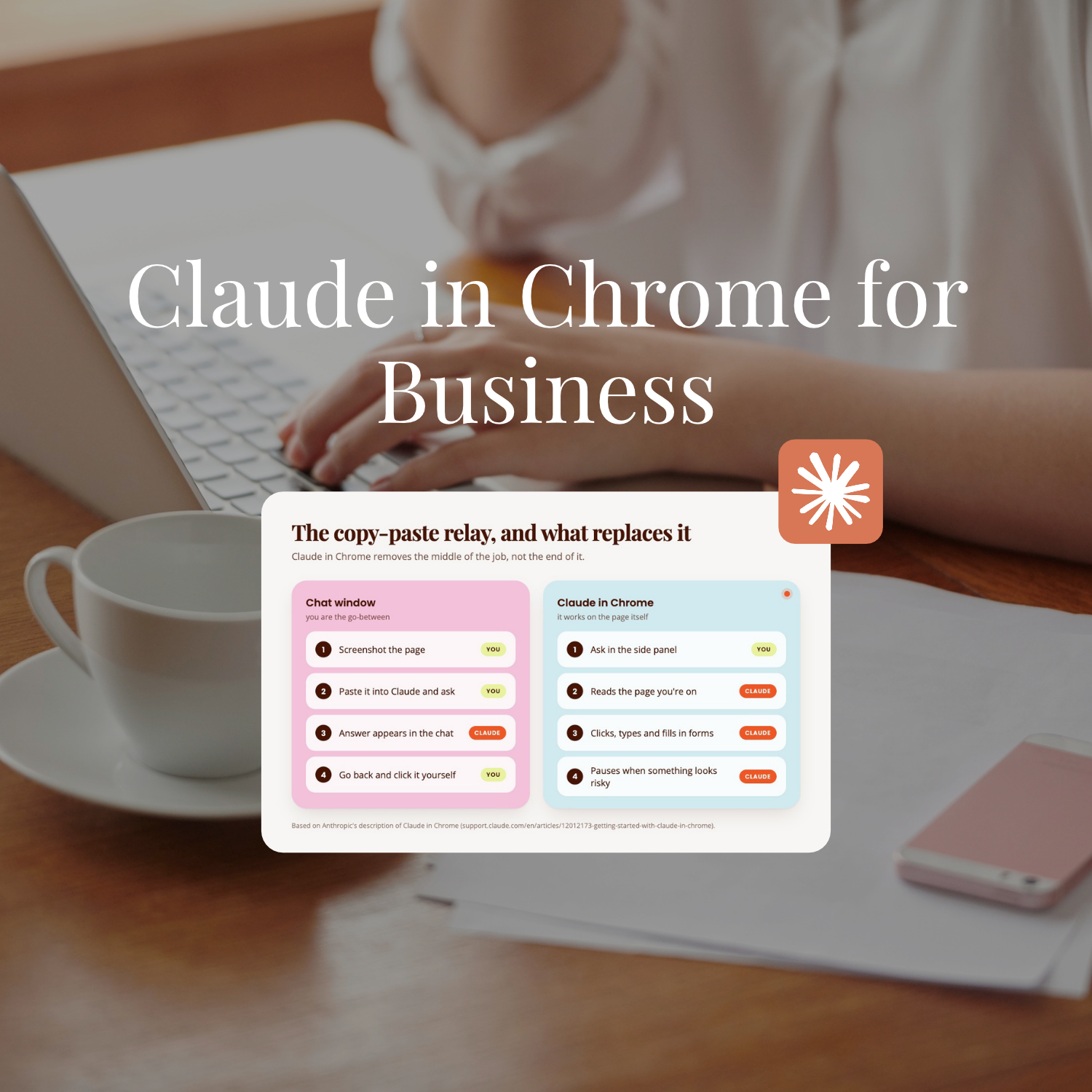
You know the copy-paste relay. Screenshot the page, paste it into Claude, ask your question, copy the answer back out, click the thing yourself. Claude in Chrome skips the relay entirely. It opens as a panel down the side of your Chrome window, looks at the actual page you're on, and clicks the button or fills the field itself.
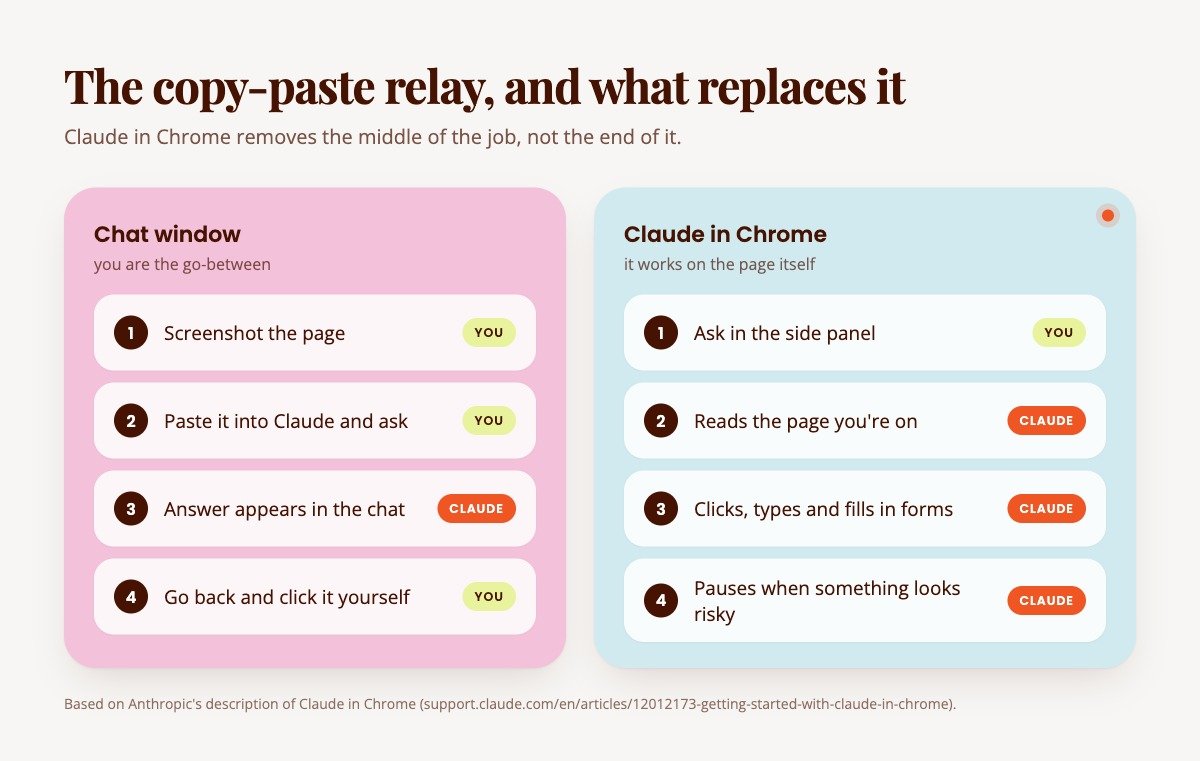
Anthropic describes it plainly: Claude in Chrome "allows Claude to read, click, and navigate websites alongside you." That's the whole idea in one sentence. Everything else in this post is what that turns out to mean in practice, and it's grown a fair bit since it first shipped.
Scheduled tasks, multi-tab handling, reading a page's console logs, none of that was there on day one. If you tried it early and wrote it off, it's worth a second look now.
Worth knowing before you go further: it's genuinely different from Claude Cowork's built-in browser. Cowork now has its own browser inside the Claude Desktop app, nothing to install. If you already have Claude in Chrome installed, it stays the one Cowork uses for web tasks. If you don't, Cowork just uses its own built-in browser by default.
They're not competing products, one is a Chrome extension you add yourself, the other is baked into Cowork, and you can pick which one does the work in Settings.
Which Plan Do You Need to Use It?
Claude in Chrome is not available on the free plan. It's Pro, Max, Team or Enterprise only. If you've been running Claude for free and someone tells you to "just install the Chrome extension", you'll install it, sign in, and find there's nothing there for you yet.
There's a second layer worth knowing before you install anything. On Max and Team plans, the side panel runs as a proper Claude Cowork session: it's saved to your history, it follows you across devices, and any skills or connectors you've already set up work inside it. That's rolling out to Pro plans now too. On Enterprise, it depends on whether your admin has turned Cowork on for the organisation yet.
And it's Chrome, specifically. Not Edge, not Brave, not Arc, not Safari, and not on your phone. If your daily browser is one of the Chromium cousins, this is the one feature that will make you keep an actual Google Chrome window around just for this.
What Claude in Chrome Can Actually Do
"It can browse the internet" definitely undersells Claude in Chrome. But "it can do anything in your browser" oversells it just as badly. It can:
Read and act on the page you're looking at. Click, type, navigate, fill in forms, the same physical actions you'd do with a mouse and keyboard.
Work across several tabs at once. Drag tabs into Claude's own tab group and it can pull information from all of them together, rather than you tabbing back and forth to compile it yourself.
Run on a schedule. Set a recurring task once (daily, weekly, monthly) and it checks in on its own, the same idea as a scheduled task inside Cowork.
Navigate familiar platforms without step-by-step instructions. Anthropic's own list names Slack, Google Calendar, Gmail, Google Docs and GitHub as sites it already knows how to move around in, so "schedule a meeting" or "update the doc" works without you spelling out every click.
Read console logs. More useful if you dabble in your own website than if you don't, but it means Claude can see errors and network requests directly rather than you screenshotting a red error message and describing it.
Save and reuse shortcuts. Once a prompt works well, save it and pull it back up by typing "/" in the panel, instead of retyping the same instructions every time.
Take direction from a screenshot. Point at the exact button or field in an image instead of describing where it is in words.
How the side panel behaves depending on your plan. On Max, Team and (soon) Pro, that panel is a Claude Cowork session under the hood. That's why your history saves properly and why a skill you built once works the same way in the side panel as it does anywhere else in Cowork.
On the classic side panel, without that Cowork layer, you lose that continuity, but you do keep one thing the Cowork version doesn't have yet: recording a workflow by physically doing it once and having Claude learn the pattern.
What It Can't Do (And Shouldn't Be Asked To)
There's a short, specific list of things Claude in Chrome flatly refuses to do. It will not trade stocks or make investment transactions, bypass a CAPTCHA, gather or scrape people's faces, or type sensitive data into a field on your behalf without you seeing it happen first.
It also isn't available at all to organisations covered by HIPAA, and Anthropic recommends against using it on any page holding regulated data more broadly. If your business touches health records, that's a hard no, not a "be careful."
The more everyday limit: whatever's visible on your screen while the side panel is open becomes part of what Claude sees. It can't tell the difference between a page you meant to show it and a tab sitting open behind it with something private on screen. That's a genuinely different risk shape to a normal chat, where the only thing Claude ever sees is what you deliberately typed or pasted in.
This is exactly the kind of scoping decision we work through for every new Claude capability inside SheScales, not whether a feature is impressive, but whether it earns a place in your actual business given what it can reach.
Is It Safe to Let Claude Click Around Your Accounts?
Short answer: It’s safer than it sounds, but riskier than zero.
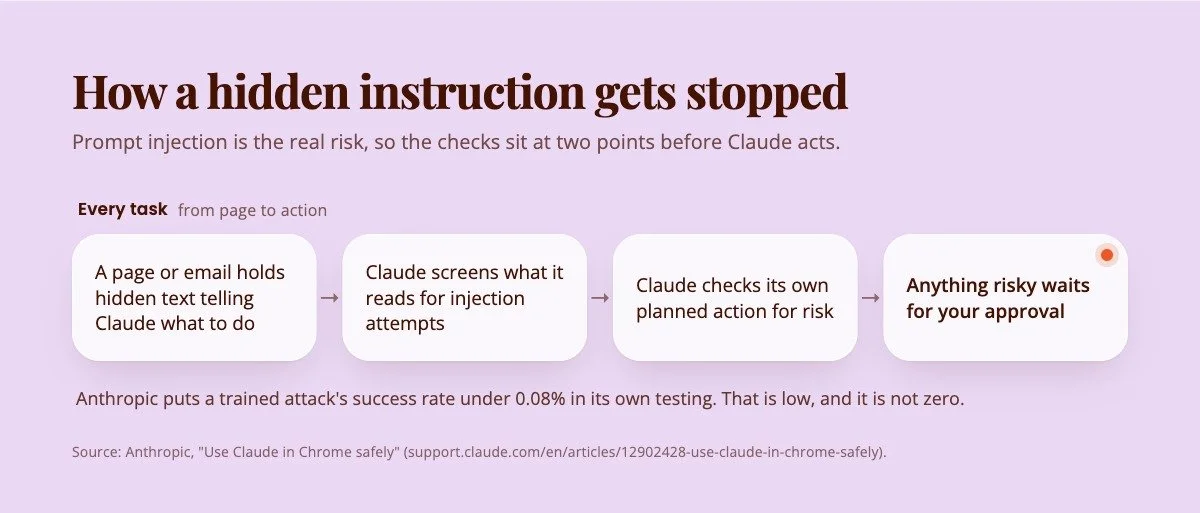
The main risk isn't Claude "going rogue" and deciding to do something on its own. It's prompt injection: instructions hidden inside a webpage, an email, or a document that Claude reads as part of doing the task, and mistakes for something you asked it to do. Anthropic's own example is blunt: an innocent-looking to-do list with invisible text buried in it telling Claude to go find your bank statements and post them somewhere.
There are real safeguards against this, not just a warning label. Claude screens incoming content for injection attempts before it acts on anything, and it checks its own proposed actions for risk before running them, pausing for your approval when something looks off.
Anthropic states its current model reduces a trained attack's success rate to under 0.08% against its internal testing. That's a genuinely low number. It is also, by Anthropic's own admission, not zero, and a novel attack the testing hasn't seen yet is the exact gap that number can't close.
There are also hard walls built in rather than left to judgement: it can't reach adult content sites or known piracy sites at all, and it asks permission before touching a financial site rather than just walking in.
The practical version of "use it safely" is simpler than the risk explanation makes it sound:
Use a separate browser profile without your banking, healthcare or government logins in it.
Start with tasks you'd be fine watching over a shoulder, research, form-filling, comparing things across tabs, before handing over anything multi-step and unattended.
Don't open the side panel while something sensitive is sitting on your screen. It sees what you see.
Stay on sites you actually trust. This is not the moment to test it on a random tool you found in a Facebook group.
You're still the one responsible for whatever it does in your accounts, the same as you'd be responsible for a task you delegated to a person 😬.
If you've been building your Claude setup properly, this is exactly the kind of decision the Claude Setup Kit walks you through, what to give Claude access to and what to keep well away from it, before you're making that call on the fly.

The First Three Things Worth Pointing Claude in Chrome At
Three ordinary, low-stakes jobs to try it on first, while you're still working out where you trust it.
Pull one answer out of five open tabs. You've got five browser tabs open comparing something (suppliers, a tool, a competitor's pricing) and you're tired of clicking between them to hold it all in your head. Drag them into Claude's tab group and ask it to lay out the comparison.
A reply to a thread that's already open. Claude's site knowledge covers Gmail specifically, so it can read the whole thread and draft a reply that actually matches the context, instead of you re-explaining what the email said before it can help.
A page you'd otherwise remember to check. Not banking, not anything with someone else's data on it. A competitor's pricing page, whether a waitlist has opened, whether a form field finally showed up on a site you're waiting on. Set it as a scheduled task once and stop being the one who has to remember.
Start there. None of the three ask it to do anything you wouldn't hand to a very literal, very fast assistant on their first week.
How to Install Claude in Chrome

Open an actual Google Chrome window (not Edge, not Brave).
Go to the Chrome Web Store and search for Claude. Pick the listing from claude.com with the verified badge, because other extensions with Claude in their name show up in the same results.
Click "Add to Chrome."
Sign in with your Claude account when it asks.
Pin the extension: click the puzzle piece icon in your toolbar, then the pin next to Claude.
Grant the permissions it asks for. It's a long list, most Chrome extensions ask for a long list, but unlike most of them every item on this one maps to something in the capability list above rather than existing to make you click "Allow" faster.
Click the Claude icon in your toolbar any time to open the side panel.
If you're on a Team or Enterprise plan and it isn't showing up, that's normally an admin setting, not something broken on your end. Your admin controls whether it's switched on for the organisation and which sites it's allowed to touch.
Key Takeaways
The short version of everything above:
Chrome only, paid plans only: Claude in Chrome works in Google Chrome itself on Pro, Max, Team and Enterprise plans, so there's no free version to try first and no Edge, Brave, Safari or mobile option.
It acts, not just reads: It reads the page you're on, clicks, types, fills in forms, works across several tabs and can run recurring tasks on a schedule, which ends the copy-paste relay into a chat window.
Prompt injection is the real risk: The danger is hidden instructions on a page that Claude mistakes for yours, and Anthropic's own testing puts a trained attack's success rate under 0.08%, which is low but not zero.
Keep sensitive screens closed: Claude sees whatever is visible while the side panel is open, so use a separate browser profile and keep banking, health records, contracts and other people's private data out of view.
Start with low-stakes jobs: Comparing five open tabs, drafting a reply to an open email thread and watching a page you'd otherwise forget to check are the three safest places to build trust.
FAQs
What is Claude in Chrome?
Claude in Chrome is a browser extension from Anthropic that lets Claude see and act on the Chrome tab you're on, clicking, typing, navigating and filling in forms, rather than you describing the page to it in a separate chat window.
Do I need a paid Claude plan to use it?
Yes. It's available on Pro, Max, Team and Enterprise plans. There's no free-plan version.
Is Claude in Chrome safe to use for business tasks?
It's built with real safeguards, including screening for prompt injection attempts and pausing for approval on risky actions, and Anthropic reports under a 0.08% success rate for a trained attack against its own testing. That's low, not zero. Keep it away from banking, health records, contracts and anything with someone else's private data on screen, and it's a genuinely useful tool for the everyday stuff.
What's the difference between Claude in Chrome and Claude Cowork's built-in browser?
Claude in Chrome is a separate extension you install yourself. Claude Cowork now has its own browser built straight into the Claude Desktop app, nothing to install. If you already use Claude in Chrome, Cowork keeps using it as your preferred browser; if you don't, Cowork defaults to its own built-in one instead.
Can I use Claude in Chrome on Edge, Brave or Safari?
No. It's built for Google Chrome specifically and isn't supported on other Chromium-based browsers or on mobile.
What can't Claude in Chrome do?
It won't trade stocks, bypass a CAPTCHA, scrape people's faces, or handle sensitive data without you seeing it happen. It's also not available to organisations covered by HIPAA, and Anthropic recommends against using it on pages with other kinds of regulated data.
What to Do Next
Claude in Chrome is worth having installed. It's not worth handing your whole business to on day one, and Anthropic's own guidance says exactly that: start with the ordinary, low-stakes stuff and build trust from there, the same way you would with any new hire.
If you're still working out what belongs in Claude's hands at all and what stays manual, that's the actual skill underneath all of this, and it's worth building properly rather than by trial and error on your own accounts.
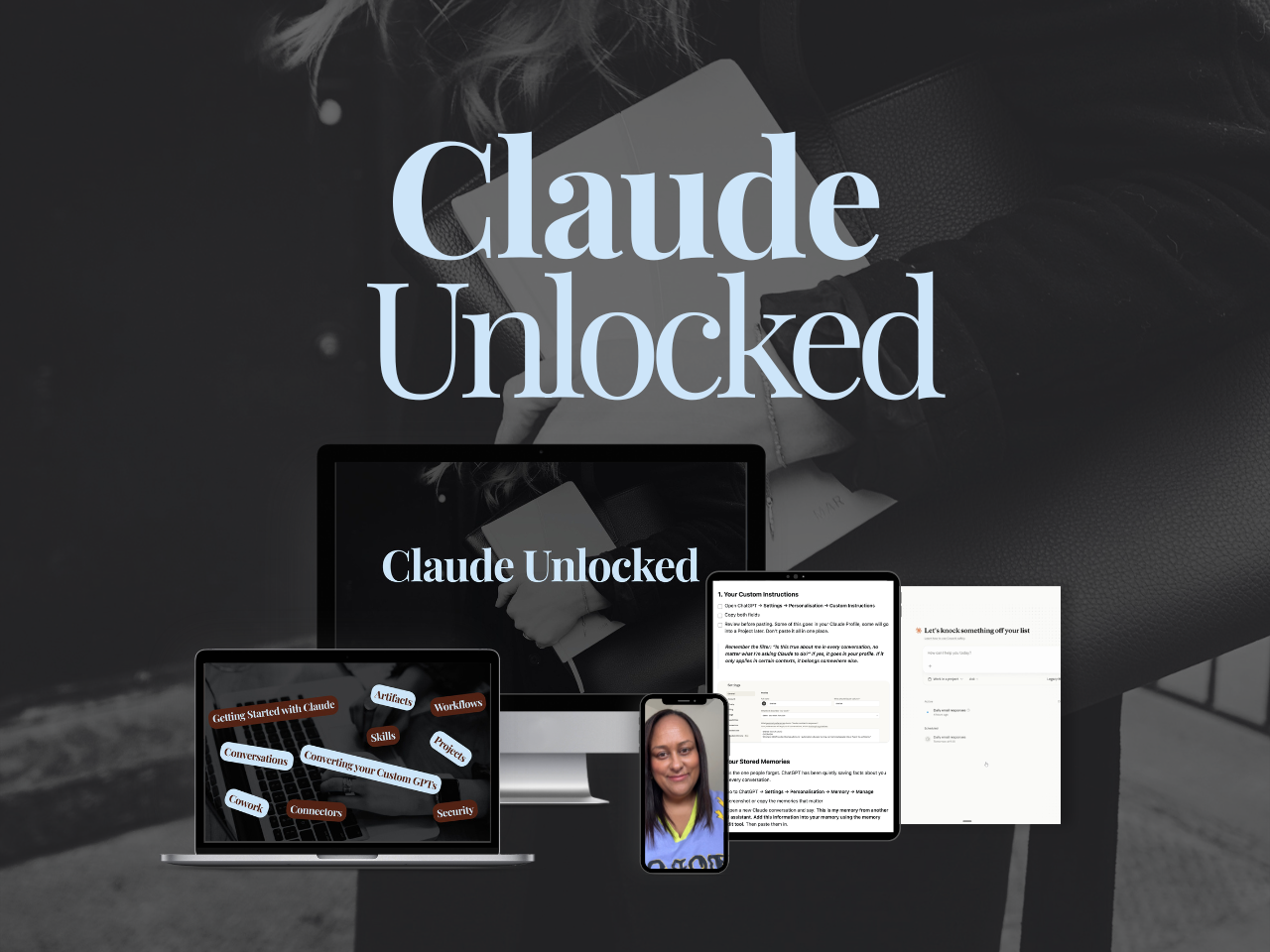
Claude Unlocked walks you through exactly that decision, and so much more, so you're choosing on purpose instead of installing every new feature the week it ships.
You’ll walk away with Projects set up for real use cases, Skills that run your recurring work, tasks being completed on a schedule, and Connectors linking Claude to the tools you already use.
It's $47 and it takes an afternoon to complete. The setup is yours to use indefinitely.
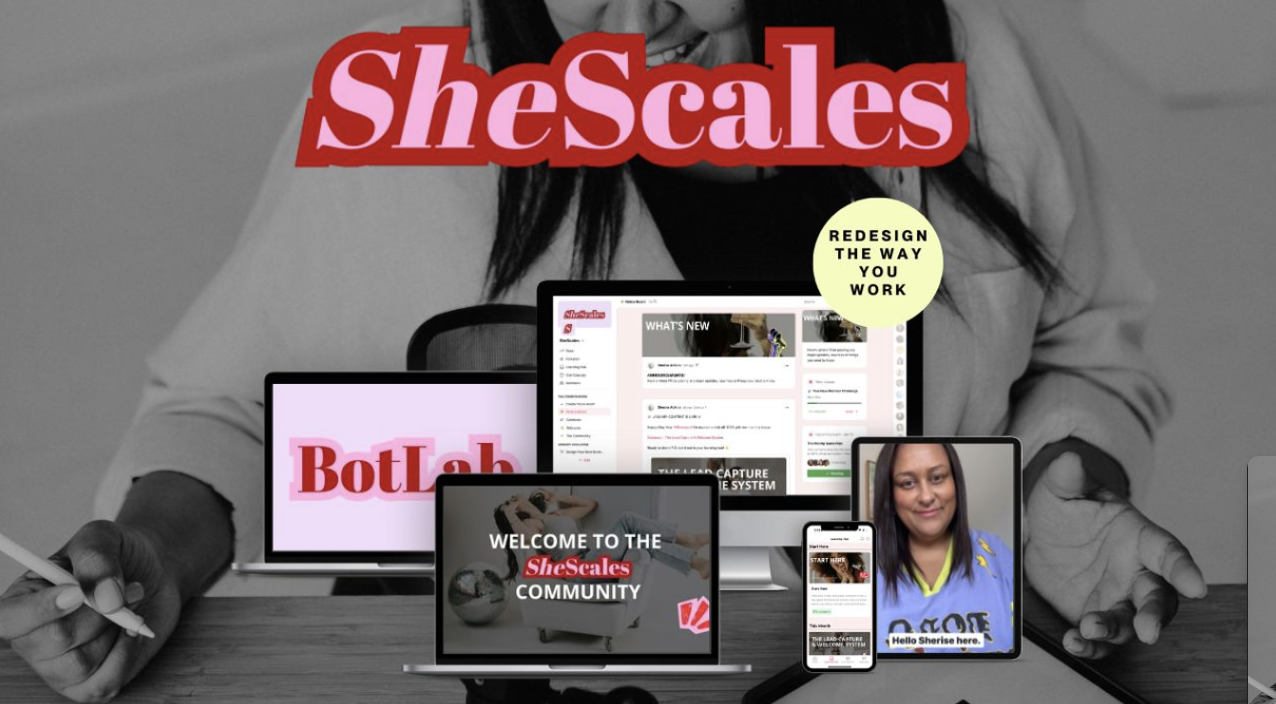
And if you want the fuller version, where we build a real system every month and I hand over every piece of it, that's what SheScales is for.
I'm in the community daily answering questions, and you've got a room full of solo founders building alongside you.
MEET THE AUTHOR

HEY, I'M SHERISE
I'm an AI strategist and educator based on the Central Coast of NSW, Australia. I help solo founders install AI systems that scale their business without scaling their workload and remove low-value work from their business so they can spend more time in strategy, creativity, and the work that actually moves the needle.
I run SheScales, the AI implementation community built for the person who IS the business and the whole team. I'm the founder behind 40+ AI assistants across ChatGPT and Claude, the Brand Playbook App, and a growing library of skills and systems used daily by hundreds of solo businesses.
I teach the Architect Method: the shift from chatting with AI to giving AI a job. It's the thinking framework for spotting where AI can genuinely help in your business, knowing how to architect the system, and deciding whether something should be a Skill, a Project, a GPT, an automation, a combination of these, or stay manual.
I'm not here to inspire you. I'm here to hand you the architecture.