The 10 Best Claude Connectors for Solo Founders (And Why You Need Them)
Last updated August 2026

Back before connectors were a thing, I was using Claude to help me write client emails. I had the context in my head, typed it all out, Claude drafted the reply, and I copied it over to Gmail myself. Every time.
Then the Gmail connector became available and it was love at first sight. Now I have a Scheduled Task in Claude Cowork with drafts waiting for me when I open my laptop in the morning. I review, adjust a line or two, and hit send.
That's the actual shift connectors make: from Claude as a clever writing tool to Claude as something that runs a function in your business.
Your week as a solo founder doesn't look like a job description. It looks like: write the email, update the client doc, chase the invoice, draft the caption, find the file you saved somewhere, and try to carve out time to actually think 🤪.
Claude can help with all of it. But only if it can see what you're actually working with.
That's what connectors do. They give Claude direct access to the tools your work lives in — your inbox, your Drive, your calendar, your Canva account, your payments dashboard — without you copying anything across.
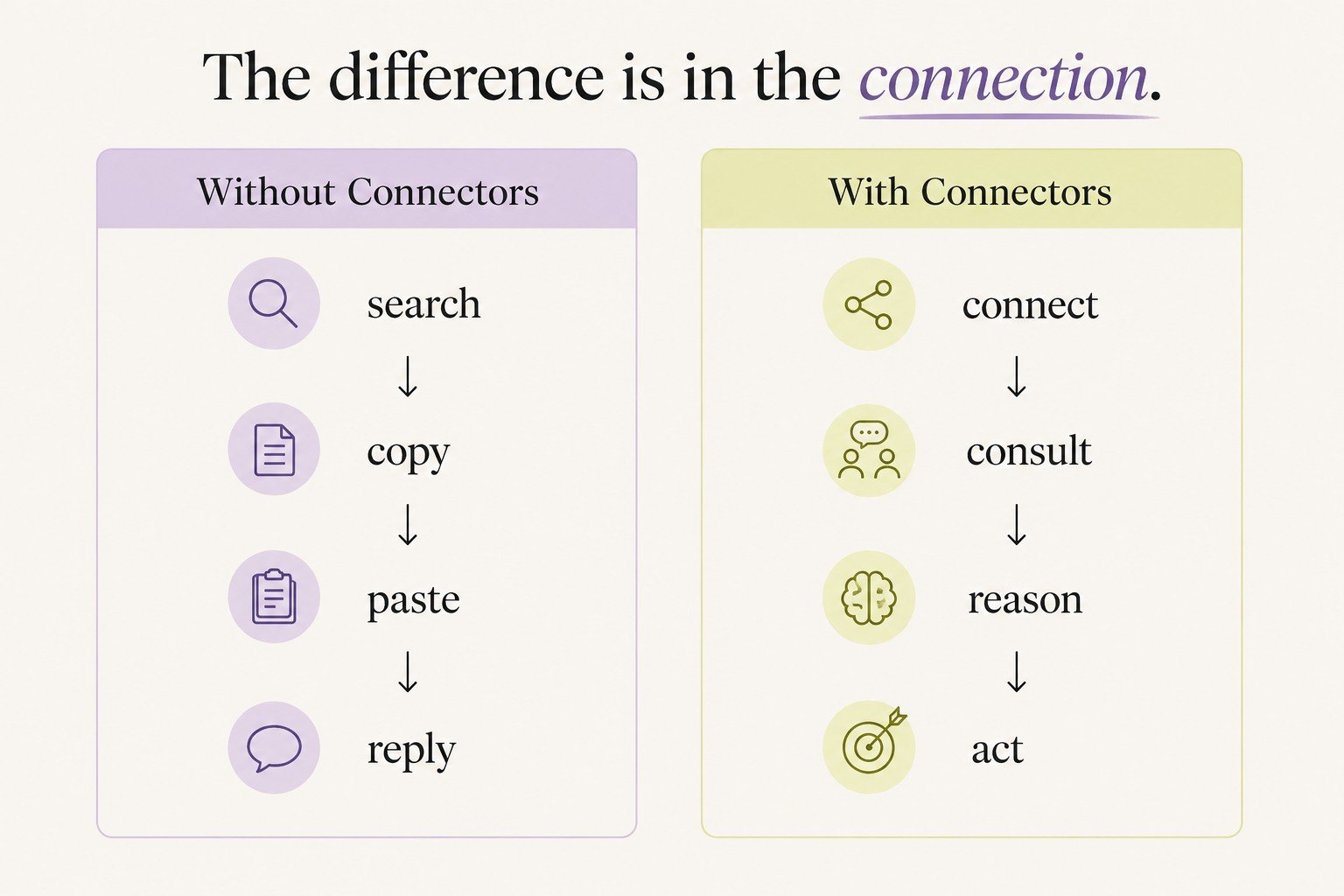
Instead of bringing information to Claude, Claude goes and gets it. This is what allows Claude to actually start doing work for you.
There are 439 connectors in Claude's directory (as of today, but that number grows all the time).
These are the 10 that fit the kind of week a solo founder actually has.
Claude Connectors let Claude access the apps you already use — reading your emails, searching your documents, pulling payment data, generating designs — without you copy-pasting anything into the chat.
For solo founders, the connectors that matter are the ones covering communication, content, client files, and money. This post covers the 10 that do.
Connectors matter even more inside Cowork, where Claude is completing a task rather than answering a question. What Is Claude Cowork explains the difference.
TL;DR:
The connectors that matter for solo founders aren't the ones dominating most AI newsletters. They're the ones that plug into the tools where your actual week happens.
Each one removes a specific copy-paste loop — Claude accesses the app directly instead of waiting for you to bring the data to it.
Start with Gmail, Google Drive, and Google Calendar — all free on every plan, and covering the three tasks that eat most of a solo founder's week.
Authorise once, use everywhere: once you connect a tool, Claude can access it across Cowork, Projects, and regular chats with no re-setup required per session.
Add based on what your week actually contains. The right connectors are the ones for the apps your work already lives in.
New here? This blog is for the solo founder who wears every hat in the business, and wants real AI systems and workflows running things, not just piecing it together in the chat. Start here →
What Are Claude Connectors?
A connector is a one-click integration that gives Claude access to an external app. Connectors let Claude talk to apps like Gmail, Notion, Google Drive, and others, so it can pull info from them or take actions on your behalf, instead of you copy-pasting things into the chat.
They're built on the Model Context Protocol (MCP), an open standard Anthropic developed so AI tools can securely plug into external software. Think of it like USB for AI: one universal connection point, no custom development required.
Setup is fast. You find the connector in Claude's directory, click Connect, sign in with your existing account credentials through a standard OAuth flow, and it's done. Claude can only access data you explicitly ask it to retrieve, and it can only see what you already have permission to see in that app.
Worth knowing: once a connector is authorised, Claude can use it automatically across any conversation, whether that's Cowork, Projects, or regular chats. You only need to authorise each connector once from your settings. After that, Claude draws on it whenever the task calls for it.
For the full step-by-step setup walkthrough, see What Are Claude Connectors.

Connecting Claude is the first step. Knowing what to hand it is the second.
Twenty jobs Claude can take off your plate, sorted by where your week actually goes, with the one to hand over first. It takes about twenty minutes, and it's free.
The 10 Best Claude Connectors for Solo Founders
1. Gmail Connector
The problem: Your inbox holds more context about your business than anything else you own. But when you want Claude to help you draft a reply, you copy the thread in manually, explain the backstory, wait for the response, then copy it back to Gmail. Every time.
What changes: With the Gmail connector, Claude goes directly to your inbox. It can search threads, find emails from specific people, read attachment context, surface what's sitting unanswered, and draft replies that already know the full conversation history. No copy-pasting. No re-explaining who anyone is.
Prompts to try:
"Find the last email thread with [name] and draft a follow-up in my voice."

"What's sitting in my inbox that I haven't replied to in over 3 days?"

"Find every email about [project name] from the last month and give me a summary of where things stand."
Solo founder use case: You come back from a long weekend with 60 emails. Ask Claude to triage your inbox, surface anything urgent, and draft replies to the top five. Twenty minutes instead of a morning.
2. Google Drive Connector
The problem: Your proposal template, onboarding SOP, content plan, and client notes are all in Google Drive. Every time you want Claude to reference something, you open Drive, find the file, copy the relevant section, paste it in. Or you upload it. Either way, you're doing bridge work that shouldn't be your job.
What changes: Claude can search your Drive, read file contents directly, and pull documents into the conversation without you manually fetching them. It works across Docs, Sheets, Slides, PDFs, and images. When you add a Drive document to a Claude Project, it stays live and any updates you make to the document are automatically reflected.
Prompts to try:
"Find my client proposal template in Drive and adapt it for [client name] based on what I tell you about their situation."

"Search my Drive for anything about [topic] and summarise what I've already documented."

"Pull up the [SOP name] document and walk me through the key steps."
Solo founder use case: A client asks about something from their onboarding doc. Instead of opening Drive, finding the file, scanning for the right section, and typing a reply, you ask Claude to pull the document and draft the response. Done before you'd have found the file.
3. Google Calendar Connector
The problem: Claude can help you plan. But if it doesn't know your actual calendar, the planning is disconnected from your real week. It doesn't know when you're booked, when you have breathing room, or whether Tuesday actually has space in it.
What changes: Claude sees your real schedule. It can find open blocks, create events, set up recurring time blocks, prepare meeting agendas, and spot overloaded days all from a single conversation, without you opening a separate tab.
Prompts to try:
"What does my week look like? When do I have uninterrupted blocks for deep work?"

"Find a 45-minute slot next week for a client call and draft an invitation."

"Block 2 hours every Tuesday morning for content work for the next 6 weeks."
Solo founder use case: You're going back and forth with someone trying to schedule a call. Instead of checking your calendar, copying available times, drafting the email, and creating the event, Claude checks your calendar, finds the gap, and drafts the scheduling email. One prompt.
4. Canva Connector
The problem: You need a graphic. You open Canva, start from a template, adjust the layout, go back to Claude to refine the copy, go back to Canva to update the text, go back to Claude again. The thinking and the making are in different places, and you're the one moving between them.
What changes: Claude doesn't just read your Canva files. It generates and edits designs directly inside your Canva account.
Prompts to try:
"Create a 5-slide Instagram carousel about [topic] using my brand colours. Clean and minimal."

"Find my [template name] in Canva and create a new version for [topic]."

"Make a lead magnet cover for [freebie name]. Professional, purple accent."
Solo founder use case: You need a week of Instagram content. You give Claude the topics, it generates the carousel designs in Canva and drafts the captions. What used to be a half-day of switching between apps takes one session.
5. Notion Connector
The problem: Notion is where good ideas go to hide. You've got content pillars in one database, client notes in another, your SOP library somewhere else, and your half-built systems scattered across pages you haven't opened in two months. You know the information is in there. Finding it in a hurry is another matter.
What changes: Claude can search your entire Notion workspace, read page and database content, and pull what it needs directly into the conversation. For solo founders who use Notion as their business brain, this is the connector that makes Claude feel like it actually knows your business. Claude can also write directly to Notion so you don’t need to copy and paste a thing.
Prompts to try:
"Search my Notion for my content pillars and use them to brainstorm 5 post ideas for this week."

"Find my client onboarding SOP and summarise the key steps."

"What's in my project page for [client name]? Where are things up to?"
Solo founder use case: You're planning content for the week and want ideas that actually fit your pillars, not generic suggestions. Claude searches your Notion, finds your documented content pillars, and brainstorms from those. The ideas are specific to your business because they're built from your actual strategy.
6. Xero Connector
The problem: You run your own bookkeeping. Mostly. You log in to Xero occasionally, check what's been reconciled, wonder if your profit looks right, and close the tab without a clear picture of where things stand. The data is in there but you just don't have time to dig into it properly.
What changes: The Xero connector gives Claude access to your financial data: profit and loss, cash position, outstanding invoices, aged payables and receivables. Instead of navigating Xero's dashboard manually, you ask a plain-English question and get a plain-English answer.
Prompts to try:
"What's my cash position right now? How much do I have vs how much do I owe?"

"Which invoices are overdue? Who's been outstanding the longest?"

"Give me a plain-English summary of this month's P&L compared to last month."
Solo founder use case: End of month. Instead of spending an hour digging through Xero and trying to interpret the numbers yourself, you ask Claude to pull a summary of your financial position, flag what's outstanding, and explain what the P&L is telling you. Twenty minutes and a clear picture.
7. Stripe Connector
The problem: A customer emails about a charge. You can't remember the details. You log into Stripe, search for their name, find the transaction, cross-reference with their email. Meanwhile they're waiting.
What changes: The Stripe connector gives Claude direct access to your payment data: customers, transaction history, invoices, subscriptions, and refunds. You can answer billing questions in seconds instead of minutes, and check payment status without opening a separate dashboard. You can even build a dashboard powered by your Stripe data.
Prompts to try:
"Find the last payment from [customer name] and give me their transaction history."

"Which subscriptions are active right now? Have any lapsed in the last 30 days?"

"Pull up [customer name]'s account — I need to check if their last invoice was paid."
Solo founder use case: A member emails saying their payment didn't go through. You ask Claude to pull their account, check what happened, and draft a reply explaining next steps all before you'd have finished logging into Stripe.
8. Slack Connector
The problem: If you have a VA, a small team, or a client community running on Slack, important decisions and context disappear into threads faster than you can track them. By the time someone asks "what did we decide about that?" you're scrolling back through three weeks of messages.
What changes: Claude can search your Slack workspace, summarise channels and threads, find decisions buried in old conversations, and help you catch up after time away without manual scrolling.
Prompts to try:
"Search #clients and tell me what was discussed about [project name] in the last two weeks."

"What messages have I missed in [channel] since Monday?"

"Find any conversations where someone mentioned [topic] this month."
Solo founder use case: You've been away for three days and your VA has been handling things. Instead of reading 200 Slack messages to catch up, you ask Claude to summarise what happened and flag anything that needs your attention. Back in context in five minutes.
9. Make.com Connector
The problem: You've built some Make.com automations. Maybe a Pinterest batching workflow, or a content repurposing scenario, or a client onboarding sequence. But checking on them means logging into Make, navigating to the scenario, looking at the run history, and trying to remember which module was the problem last time.
What changes: The Make.com connector lets Claude interact with your scenarios directly: check run history, trigger scenarios manually, create or update automations, and troubleshoot errors from the chat. Your automation layer becomes conversational.
Prompts to try:
"Check the run history on my Pinterest batching scenario — did it run successfully this week?"

"Trigger my client onboarding scenario for [client name]."

"Find any scenarios that errored in the last 7 days and tell me what went wrong."
Solo founder use case: Your weekly content automation didn't fire. Instead of logging into Make, finding the scenario, reading the error log, and working out which module failed, you ask Claude to pull the run history and explain what went wrong. Fixed in the time it used to take to find the error.
10. Zoom Connector
The problem: You finish a client call with notes in your head, action items half-remembered, and a vague sense of what was agreed. You meant to write it up straight away. You didn't. Now it's the next day and you're piecing it back together.
What changes: The Zoom connector gives Claude access to your recorded meetings: transcripts, AI summaries, action items, and next steps. You can ask Claude to search a specific recording, pull what was decided, and draft a follow-up email all without watching the recording again.
Prompts to try:
"Find my call with [client name] last week and summarise what we discussed and agreed."

"Pull the action items from my most recent client session and draft a follow-up email."

"Search my Zoom recordings for any calls where we discussed [topic]."
Solo founder use case: You had a discovery call with a potential client. An hour later you need to send a proposal. Instead of relying on memory, you ask Claude to pull the transcript, extract their key needs, and use those to draft the proposal. The proposal is specific because it's based on what they actually said.
Quick Reference: Best Claude Connectors for Solo Founders
| Connector | Best solo founder use case |
|---|---|
| Gmail | Inbox triage, email drafts, follow-up management |
| Google Drive | Finding and using your business documents, writing business documents |
| Google Calendar | Scheduling, time blocking, availability |
| Canva | Generating designs and content graphics |
| Notion | Searching your business workspace and notes, writing documents, adding database entries |
| Xero | Bookkeeping summaries, invoices, P&L |
| Stripe | Payment data, customer billing questions, financial dashboards |
| Slack | Catching up, searching team conversations, summarising |
| Make.com | Managing and triggering your automations, creating new automations |
| Zoom | Meeting summaries, action items, follow-ups |
What Can You Do When You Combine Multiple Connectors?
Individual connectors save time on their own. Combining them is where the real shift happens, because that's when Claude stops being a tool you switch to and starts being a layer running across everything.
A few examples of what that looks like in one prompt:
Gmail + Google Calendar:
Check my email for any meeting requests from this week. Find times I'm free and draft replies with three suggested slots.
Google Drive + Notion:
I have a content plan in Drive called 'Q3 Content Plan'. Find it, compare it to my content pillars in Notion, and flag anything that's missing.
Gmail + Canva:
Find my last newsletter email in Gmail. Use the same topic to generate a matching Instagram carousel in Canva.
How Do You Install a Claude Connector?
Setup is the same for every connector. Under 60 seconds for most.
In Claude web or mobile: click "+" in the chat bar → Connectors → Add connector → browse or search the directory → click Connect → sign in with your existing account credentials → done.
You only need to authorise each connector once.
First time?
Start with one connector — whichever tool you open most during a normal work day. Get comfortable with what it can do before adding more. Gmail or Google Drive are the easiest starting points for most solo founders.
If you want full instructions on how to install your first Claude Connector, I’ve laid it all out in What Are Claude Connectors.
Which Connectors Should You Install First?
If you're starting from scratch: Gmail, Google Drive, and Google Calendar. They cover the three functions that eat the most time in a solo founder's week, and they work together.
Add Canva next if you create your own content and graphics. It's one of the most used connectors among SheScales members.
Then add based on what your specific week contains.
Use Notion daily? Add it.
Run your bookkeeping through Xero? Add it.
Have automations in Make.com? Add it.
The list above is ordered by how broadly applicable each connector is to a solo founder's typical week, but your week is yours. Install what your actual business runs on.
As of June 2026, Claude's connector directory has over 400 verified integrations. The full list is at claude.com/connectors.
The connectors that matter are the ones that live where YOUR work lives. Don't install everything at once. Install the two that would save you the most time this week, use them properly, then add the next one.
If you want to understand how connectors, Projects, and Skills work together to build a proper AI layer in your business — rather than just plugging in individual tools — that full picture is in Claude Unlocked.
It covers the complete Claude infrastructure setup: what each feature does, which order to build in, and how to give Claude the context it needs to actually run something in your business.
Key Takeaways
The short version of everything above:
The connectors that matter for solo founders aren't the ones dominating most AI newsletters, they're the ones that plug into the tools where your actual week happens.
Start with the Google trio: Gmail, Google Drive, and Google Calendar are free on all plans and cover the three functions eating the most time in a one-person business. Install those first.
Connectors remove the copy-paste layer: Every connector you install is a workflow where you stop manually moving information between Claude and an app. That time compounds.
Authorise once, use everywhere: Once you connect a tool, Claude can access it across Cowork, Projects, and regular chats with no re-setup required per session.
Install based on your actual week: The list above is ordered by broad applicability, but your business runs on specific tools. Add the connectors for the apps you open most — those are the ones where the time savings hit hardest.
Frequently Asked Questions
Are Claude Connectors free?
The Google Workspace connectors (Gmail, Google Drive, Google Calendar), Canva, and Slack are available on all Claude plans including Free. Some connectors in the directory require a paid plan. The best way to check current availability is the connector directory at claude.ai/directory/connectors, as Anthropic updates this regularly.
How long does it take to set up a Claude Connector?
Under 60 seconds for most connectors. You click Connect in the directory, sign in with your existing account credentials, and it's done. You only need to authorise each connector once. After that, you toggle it on at the start of any conversation where you want to use it.
Is it safe to connect Gmail and Google Drive to Claude?
Yes. Anthropic uses OAuth for authorisation so you never share your password with Anthropic, only with Google. Claude can only access data you explicitly ask it to retrieve, and it can only see what you already have access to. Anthropic does not train its models on your connector data. You can disconnect any connector at any time from your Claude settings.
Do I need to set up connectors every time I start a new chat?
No. Once you authorise a connector, Claude can use it across all your conversations automatically - Cowork, Projects, and regular chats. You connect each tool once from your Claude settings and it's available from that point forward.
Do connectors work inside Claude Projects?
Yes. Google Drive files can be added directly to a Project as living knowledge that updates automatically when you edit the document in Drive.
What's the difference between a connector and a Skill?
A Skill is an instruction file that tells Claude how to work and follow your processes like an SOP. A connector gives Claude access to where your work actually lives — your Gmail, your Drive, your Notion workspace. Skills shape how Claude thinks, sounds and operates. Connectors give Claude the live data to work with. They're designed to work together.
Can Claude send emails through Gmail?
No. Claude can search your inbox, read email threads, and create drafts in your Gmail account, but it can't send emails on your behalf. You always review and send manually. Deliberate design choice, and the right one.
What happens if I turn on too many connectors at once?
Every active connector adds a tool description to your conversation context, which uses tokens before Claude has read a word of your message. With too many active at once, responses slow down, and Claude can get confused about which tool to use. Only toggle on the connectors relevant to each specific conversation.
Do I need to be technical to set up Claude Connectors?
No. Built-in connectors in the directory are set up with a few clicks and a standard browser login, no code, no config files required. Building a custom connector for a tool that isn't in the directory does require technical knowledge, but for the tools most solo founders actually use, you're covered without it.
Ready to Connect Claude to Your Business?
Pick one connector from this list — the tool you open most on a normal work day. Connect it today. Run two or three of the prompts above. See what changes.
If you want the full Claude setup — Projects, Skills, and Connectors working together — Claude Unlocked ($47) covers the complete infrastructure. It's the fastest way to go from "I use Claude sometimes" to "Claude runs parts of my business."
And if you're past learning the tools and want to build real systems, SheScales is where that happens — every month, a new system built from a real solo founder's business, fully explained and ready to implement as your own.
If the tool you need is not in the directory at all, you can still connect it yourself. Claude Custom Connectors covers how.
MEET THE AUTHOR

HEY, I'M SHERISE
I'm an AI strategist and educator based on the Central Coast of NSW, Australia. I help solo founders install AI systems that scale their business without scaling their workload and remove low-value work from their business so they can spend more time in strategy, creativity, and the work that actually moves the needle.
I run SheScales, the AI implementation community built for the person who IS the business and the whole team. I'm the founder behind 40+ AI assistants across ChatGPT and Claude, the Brand Playbook App, and a growing library of skills and systems used daily by hundreds of solo businesses.
I teach the Architect Method: the shift from chatting with AI to giving AI a job. It's the thinking framework for spotting where AI can genuinely help in your business, knowing how to architect the system, and deciding whether something should be a Skill, a Project, a GPT, an automation, a combination of these, or stay manual.
I'm not here to inspire you. I'm here to hand you the architecture.