How to Record a Skill in Claude (Instead of Writing One)
Last updated August 2026
Here's a confession: the Skills I never got around to building were always the annoying ones. The ones where if I wanted to truly explain them you’d have to stop and record a whole Loom, because there’s no easy way to just write them down. Downloading transcripts, shuffling files between six tabs, that kind of thing. I knew they'd make good Skills. I just... never did it.
Normally it's easy. I get in a chat with Claude, we go back and forth until the task is nailed, and I ask Claude to save what we’ve nailed as the Skill. Done. But that only works for the stuff that happens inside a chat. The show-don't-tell jobs stayed exactly where they were: on my plate.
Then Record a Skill landed, and that whole category cracked open. You do the task once, on your screen, talking through it like you're showing a mate over your shoulder, and Claude turns it into a Skill it can run on its own.
Record a Skill is a feature in Claude for Mac that turns a screen recording of you doing a task, narrated as you go, into a reusable Claude Skill. You show Claude the job once instead of writing it up, and it builds the instructions itself.
TL;DR:
Record a Skill builds a Skill from a demonstration. You record your screen doing the task, talk through it as you go, and Claude writes the Skill for you.
It's built for the jobs you'd film rather than type out. Multi-window, fiddly, hard to pin down in a list of steps. Those are the ones that stay manual for years.
My first one took ninety-five seconds to record. Three apps, twenty-nine captured actions, and a Skill at the end of it I haven't had to touch since.
Claude builds in things you never asked for. Mine came back with a backup route for when my connectors fall over. I hadn't mentioned it once.
Tidy your screen before you hit record. It captures whatever's visible, so close the tabs with anything private in them.
New here? This blog is for the solo founder who wears every hat in the business and wants real AI systems and workflows running things, not just piecing it together in the chat. Start here →
Here’s what we’ll be covering:
What Is Record a Skill in Claude?
Record a Skill lets you build a Claude Skill by showing Claude a task instead of writing it out.
Quick refresher, in case Skills are still a bit fuzzy: a Skill is a standing set of instructions Claude loads on its own when a task matches, so you stop re-explaining how you work every single time. Normally you'd build one by writing the steps out, or letting the built-in skill-creator interview you, or nailing a process in a conversation with Claude and then asking Claude to save the process as a skill. Record a Skill adds a fourth way, and it's the one that finally suits the jobs you'd rather show than describe.
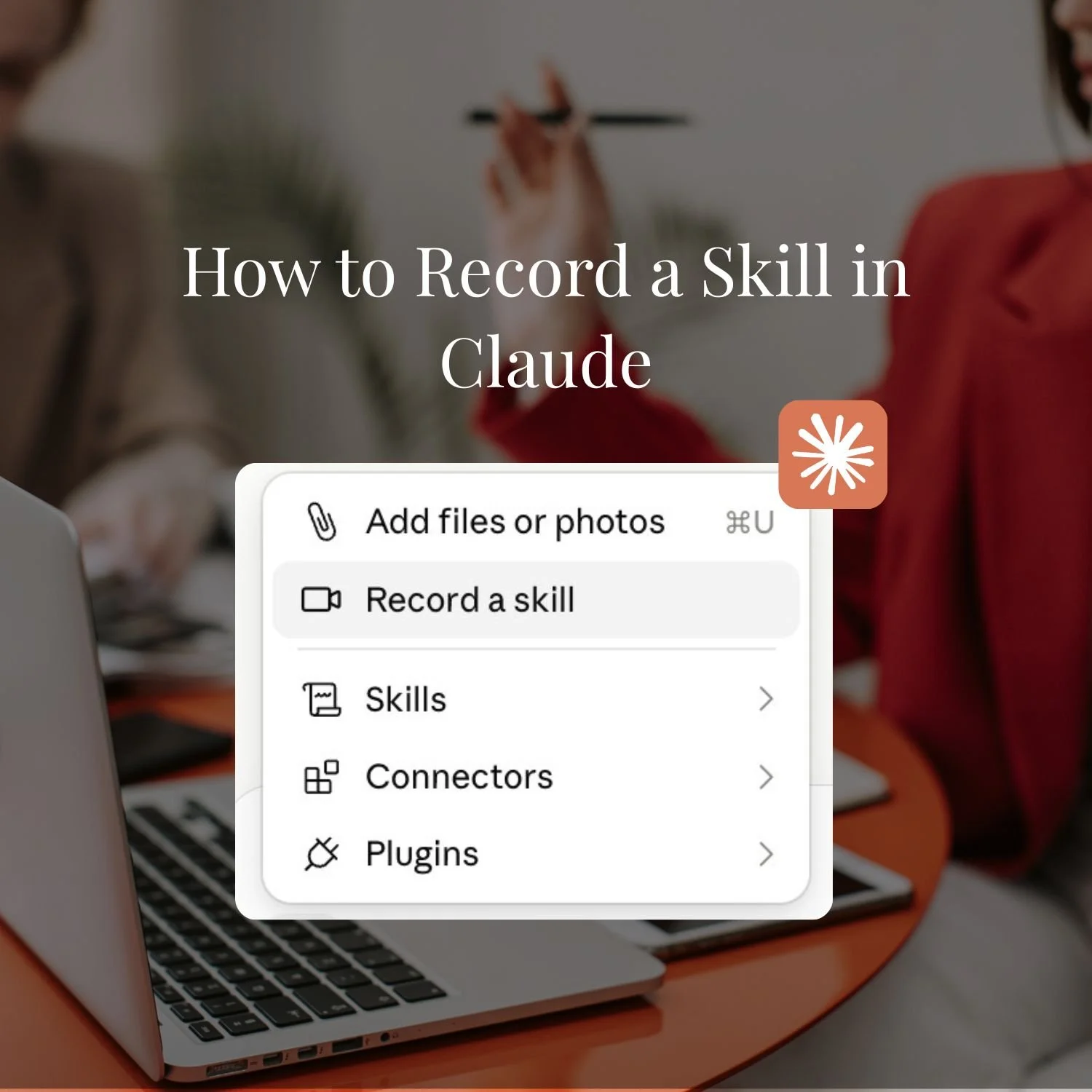
According to Anthropic's announcement, it captures your screen, your clicks, and your voice, then writes the Skill from all three. It turned up in July 2026, and it lives in Cowork in Claude for Mac. You can get to it two ways: the + button in the composer, or Customize > Skills > Add > Record your screen.
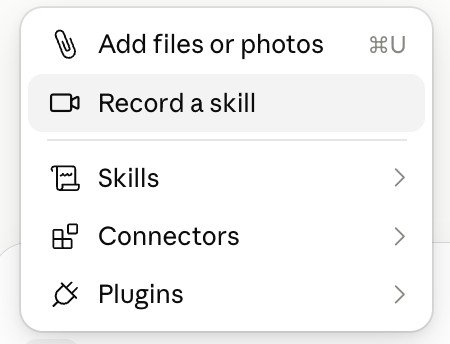
If you already build Skills the way I do, by nailing a workflow in a chat and saving it, you'll know the ones that never fit that mould. They're not difficult. They're just really difficult to explain without showing.
If your best workflows still aren't Skills, it's likely because there just wasn't a clean way to capture them until now.
Why the Narration Matters More Than Your Clicks
The narration is where your reasoning goes.
Picture Claude watching you with the sound off. It'd get the order you did things in and nothing else. It wouldn't know why, or what you'd do differently if a file wasn't there, or which step actually mattered and which one was you double-checking yourself.
That's the stuff that lives in your head and never makes it into a written SOP, because you don't even notice you know it. "I check here first because sometimes the file hasn't finished processing." "If this option's greyed out, I go this other way instead." Say it out loud while you record, and Claude catches all of it.
And if you’re wondering what Claude does with your words (because you don’t get a transcript back), Claude takes what you said and folds it into the steps, so what you end up with is a Skill carrying your reasoning rather than a recording of your voice.
One practical thing before you start: check your microphone is actually picking you up. My first recording barely caught me, and when I recorded the same task again it captured properly, so it was a glitch on my end rather than how the feature works. Still worth a ten-second test before you record something you'd rather not do twice.
Record it like you're teaching the person sitting next to you.
How to Record a Skill, Step by Step
Recording a Skill takes about as long as doing the task once, because that's all you're doing.
Two quick things to sort before your first one: make sure you're on the latest version of Claude for Mac, and say yes to the two macOS permissions it asks for, Accessibility (so it can follow your mouse and keyboard) and Screen Recording (so it can see your screen). It'll prompt you for both, and it may want a restart.
Then here's the flow:
1. Open Cowork in Claude for Mac and start a recording. Hit the + in the composer and choose Record a skill, or go to Customize > Skills > Add > Record your screen. This is a desktop job, not a browser one, because it's watching your actual screen.
2. Leave the microphone on so you can talk as you go. There's a control if you'd rather mute it or switch inputs, but the narration is where your reasoning lands, so I'd leave it running and check it's picking you up.
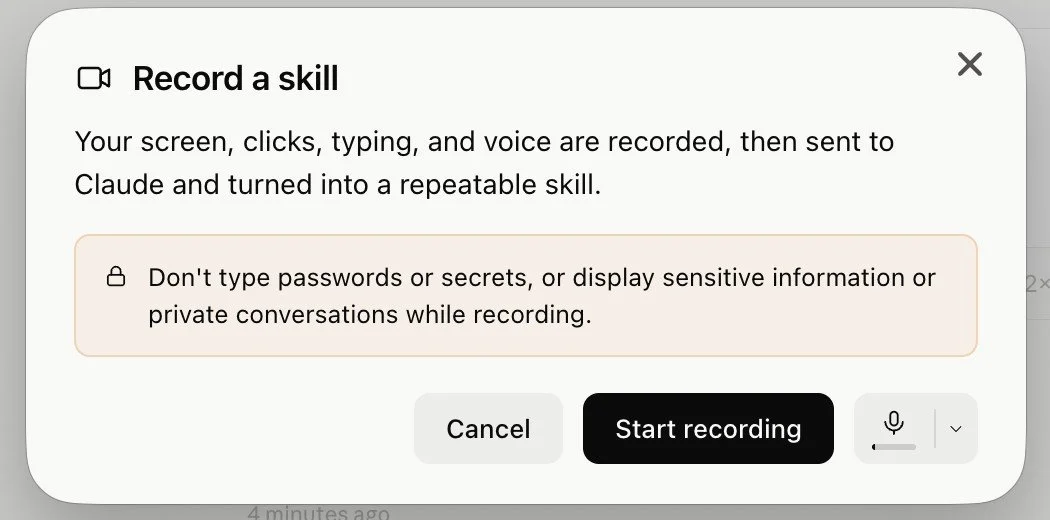
3. Do the task exactly how you normally would, and talk through it. Say the why out loud: why you skip a step, how you pick between two options. A capture bar sits on screen counting the actions as it logs them, so you can watch it working.

4. Keep it to about ten minutes max. That's roughly how long a session runs, and you'll get a countdown when you've got a minute left. Most of the jobs worth recording are far shorter than that anyway.
5. Stop when you're done, and let Claude take it from there. It runs a quick Cowork task to review the recording, then proposes a Skill. You'll spot it with a "NEW" badge on the proposal card. Hit Save to keep it, or Dismiss if it's not the one.
6. Find it in Customize > Skills and test it on something real. Saved recordings live there with your other Skills, so you can edit, share, or delete them like any other. Give it a live job and watch it run. That's where you catch anything that needs a tweak.
(Steps verified against Anthropic's own help article. If the app has moved something since, trust what's on your screen.)
What Happened When I Recorded My First Claude Skill
My first recorded Skill surprised me, and not in the way I was expecting.
The job was to download a transcript from Vimeo and drop it into Google Drive. Whenever I build new content for my membership or a new course, I want the transcripts moved across so Claude can use them as context, and so I've got backups sitting somewhere sensible. It's the sort of thing I always put off, honestly, because it’s never felt like doing it was more important than other tasks in my business. It was just best practice, and best practice is exactly what loses to a busy week.
So I recorded it once and let Claude build the Skill (I was fully expecting a mess 😅).
Ninety-five seconds. Three apps. Twenty-nine actions captured. That was the whole recording.
And I was actually surprised by the Skill that was developed by Claude. Claude didn't just hard-code the way I'd done it. It built two paths into the Skill. First, it would try to do the job through my connectors, and if the connector route fell over, it would drop back to using the Claude browser instead. I hadn't asked for any of that. It watched what I did, worked out the goal underneath it, realised there was a better way, and built in a backup for when things don't go to plan. I actually loved that.
It didn't get everything perfect on the first run, to be fair. When I tested it, a couple of things weren't quite right. But I didn't have to re-record a thing. Claude spotted what was off while it was testing and fixed the Skill itself.
This is the sort of build we pull apart together inside SheScales, piece by piece, so you can see exactly why it made the calls it made.
The important number here isn't minutes saved. It's how many times I touch this task now: none 💃🏽.
The Job I'm Recording Next: Multi-Tool Reporting
Where I think this will really shine is reporting, and that's the one I'm recording next.
I keep a spreadsheet for my ads reporting, and putting it together is a proper slog. I'm pulling numbers out of Meta Ads, Kit, Stripe, PayPal, and ThriveCart, converting US dollars into Australian dollars along the way, and dropping it all into the right cells. Nothing about it is hard. It's just spread across five places and full of small decisions I make without thinking.
That's why it's a recording job rather than a written one. I couldn't write those decisions down properly if I tried, because half of them are "oh, this month Stripe's showing it differently, so I go here instead." Show it once, narrate the nuance, and let Claude learn where everything lives and how I stitch it together.
I haven't built it yet. But it's the first thing on my list, and it's the clearest example I've got of a task that was never going to become a Skill any other way.
Getting Claude set up so it can actually reach your tools is the whole difference between a clever chat box and something that runs jobs for you while you get on with your day.
This free kit walks you through the settings, the folders, and the setup that makes it all work.

When to Record a Skill and When to Write One
Recording a Skill doesn't replace writing one. They're for different jobs, and picking the wrong one wastes your afternoon.
Record it when the task is something you have to see to get right. My Vimeo-to-Drive job was exactly that, and the ads report is the bigger version of the same thing. No line of instructions captures either one half as well as watching it happen once.
Write it when there's nothing to watch, and it’s more about Claude getting the nuance of the task correct (e.g. writing for you). Repurposing content, writing in your voice, holding a standard across everything you publish. The work there is happening in your head, not on your screen, so there's no choreography to catch. What Claude needs is your rules. Your examples. Your standards. That belongs in writing.
Record the tasks you'd film. Write the tasks you'd explain. The job itself tells you which one it is.
For the ones you'd explain, How to Build Your First Claude Skill walks through writing one without any code.
What Record a Skill Captures On Your Screen
Record a Skill captures whatever's on your screen, so the one thing to do before you start is tidy up what's visible.
It's watching the whole screen, not the one app you're thinking about. The notification that slides in, the tab you forgot was open, your inbox sitting behind everything. All of it.
Anthropic says the video and audio from your recording aren't retained. What does get saved is the screenshots from the session, and those live inside the Cowork task the recording created. Delete the task and the screenshots go with it.
So give it a ten-second sweep first. Close the tabs you don't need, hide anything with someone else's information on it, and record only the task itself. Same instinct as screen-sharing on a call. You'd close the personal messages before you shared your screen, and this is no different.
None of that is a reason to avoid the feature. It's the difference between a clean Skill and a folder of screenshots with your bank balance sitting in them.
Record the task, not your whole desktop.
Key Takeaways
The short version:
Record a Skill builds a Skill from a demonstration. You do the task on screen, talk through it, and Claude writes the reusable Skill for you. No instruction file to draft.
The narration is where your reasoning goes. Talking through the why is how Claude learns the exceptions and not just the sequence of clicks. Check your microphone is actually picking you up.
It's for the jobs you'd film rather than write up. The ones that move across windows, files, and programs. For judgement or reference-heavy work like content and brand voice, you still write the Skill.
It's quick. My first one was ninety-five seconds across three apps, and Claude built in a fallback route I never asked for.
Tidy your screen first. It captures everything visible. The video and audio aren't kept, but the screenshots live on in the Cowork task until you delete it.
Pick the one task you're most tired of doing by hand and record it this week. Ninety-five seconds is all mine took, and I've not thought about it since. I'd love to know which one you choose.
Frequently Asked Questions
What is Record a Skill in Claude?
Record a Skill is a Claude for Mac feature that builds a Skill from a screen recording. You record yourself doing a task while talking through it, and Claude turns the demonstration into a reusable Skill it can run again, with no instructions written by you. It launched in July 2026.
Which plans include Record a Skill?
Record a Skill sits inside Cowork in Claude for Mac, and Cowork availability shifts as Anthropic rolls features out. The surest check is to open Claude for Mac, hit the + in the composer, and see whether Record a skill is there. Anthropic's help article has the current list.
How long can a Record a Skill session be?
Around ten minutes, with a countdown appearing when you've got a minute left. In practice most tasks worth recording come in well under that. My first one was ninety-five seconds.
Is recording a Skill better than writing one?
Neither wins outright. It comes down to the task. Record a Skill for multi-step jobs you'd need to see to understand, especially ones that move across different windows and programs. Write a Skill for work built on judgement, structure, or reference material, like content or brand voice, where there's no on-screen sequence to capture.
Does Record a Skill work on the web or mobile app?
No. Record a Skill needs Claude for Mac because it records your actual screen. The browser and mobile versions can't capture your screen the same way, so this one is desktop-only for now.
Can I edit a recorded Skill afterwards?
Yes. Claude shows you the Skill it built, and you can review and adjust it like any other Skill. It also self-corrects during testing: when I ran mine on a real task, Claude spotted the parts that weren't quite right and updated the Skill itself.
Does Claude keep the recording?
Not the video or the audio. Anthropic says those aren't retained. The screenshots from the session are saved inside the Cowork task that the recording created, so if you want them gone, delete the task.
Is it safe to record a Skill?
The feature's safe to use, but the care is on your side, because it captures everything on your screen. Close anything sensitive before you record: client information, account numbers, open inboxes. Record only the task you're teaching, the same way you'd tidy your screen before sharing it on a call.
What to Do Next
Recording a Skill changes what you actually bother to build. The workflows you kept leaving in the too-hard basket are one recording away.
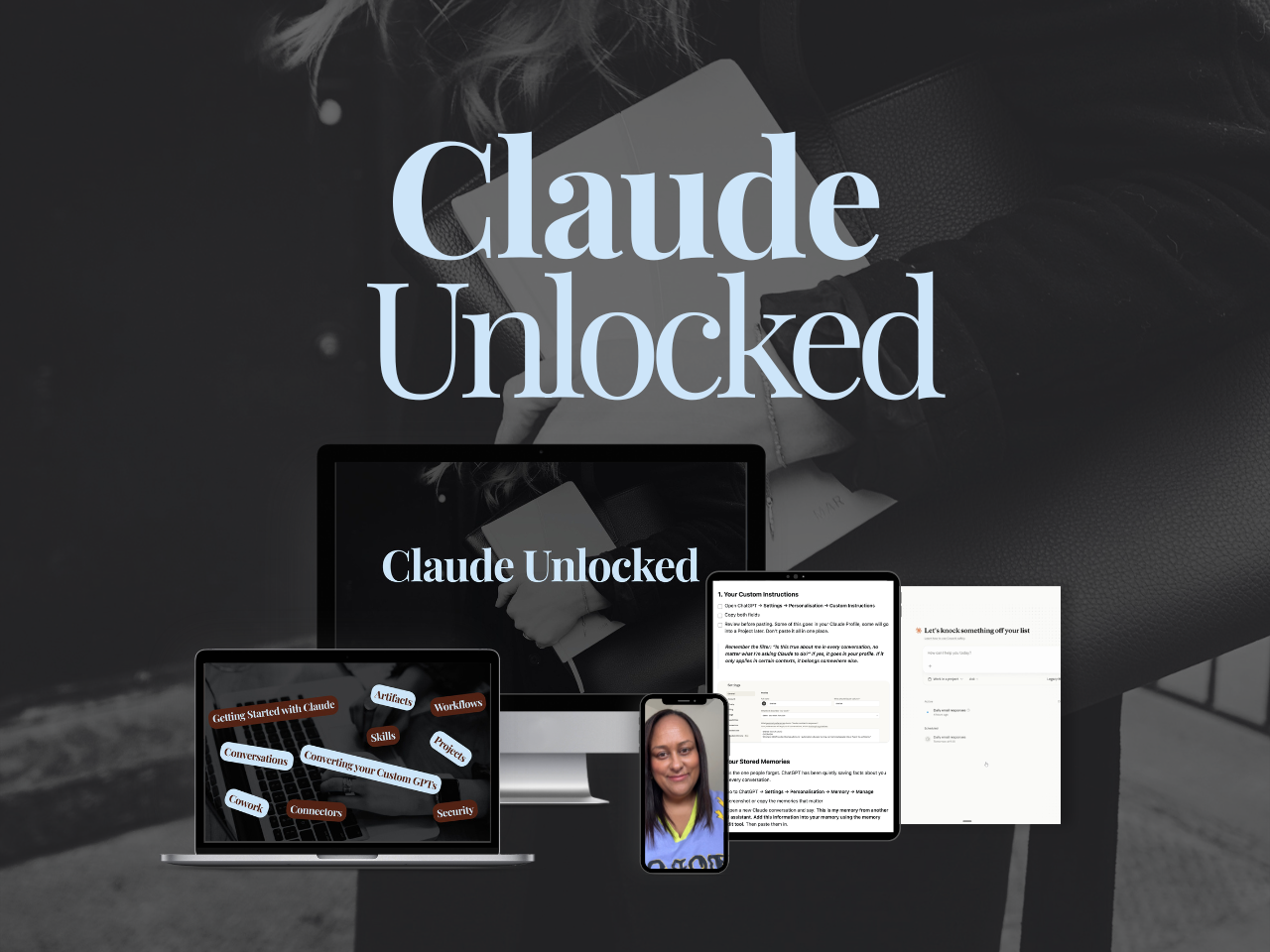
If you want the full Claude setup in one place, Projects, Skills, Cowork, and Connectors working together instead of picked up in bits, Claude Unlocked is where I'd point you.
It walks through the lot in the order they actually matter for a business owner, so you go from using Claude as a clever chat box to having it set up around how your business really runs.
It's $47 for a limited time and takes an afternoon to set up.
And if you'd rather build these systems with the reasoning shown and a room full of solo founders building alongside you, that's what SheScales is for.
Every month I build a real system in my own business, pull it apart, and hand over every component so you can build your version, Skills and all.
MEET THE AUTHOR

HEY, I'M SHERISE
I'm an AI strategist and educator based on the Central Coast of NSW, Australia. I help solo founders install AI systems that scale their business without scaling their workload and remove low-value work from their business so they can spend more time in strategy, creativity, and the work that actually moves the needle.
I run SheScales, the AI implementation community built for the person who IS the business and the whole team. I'm the founder behind 40+ AI assistants across ChatGPT and Claude, the Brand Playbook App, and a growing library of skills and systems used daily by hundreds of solo businesses.
I teach the Architect Method: the shift from chatting with AI to giving AI a job. It's the thinking framework for spotting where AI can genuinely help in your business, knowing how to architect the system, and deciding whether something should be a Skill, a Project, a GPT, an automation, a combination of these, or stay manual.
I'm not here to inspire you. I'm here to hand you the architecture.